How to Type Physics and Calculus Equations Fast on PC Without Slow Equation Menus
Hunting for integral and fraction symbols with a mouse kills study momentum. Learn how live LaTeX autocomplete in Tekno Notebook lets you write math notes at typing speed.
Why Point-and-Click Equation Editors Slow Down STEM Students
Clicking through nested symbol palettes for every fraction turns one page of physics notes into an hour-long chore.
Engineering, physics, and math students constantly look for a faster way to type equations on a laptop—without dealing with clunky desktop symbol menus or setting up a complex academic typesetting stack.
Why Keyboard-First LaTeX Beats Clicking Symbols
1. Typing Symbols Is Five Times Faster
Learning just a handful of short commands for fractions, integrals, and vectors lets you write full derivations in seconds without touching the mouse.
2. Autocomplete + Live Preview Removes the Learning Curve
You do not need to memorize every command or wait for an external compiler. Autocomplete suggests symbols after two letters and renders the formula immediately beside your text.
# Calculus & Physics Quick Snippets
\int_{a}^{b} f(x)\,dx = F(b) - F(a)
\sum_{i=1}^{n} I_i = 0
\vec{F} = m \frac{d\vec{v}}{dt}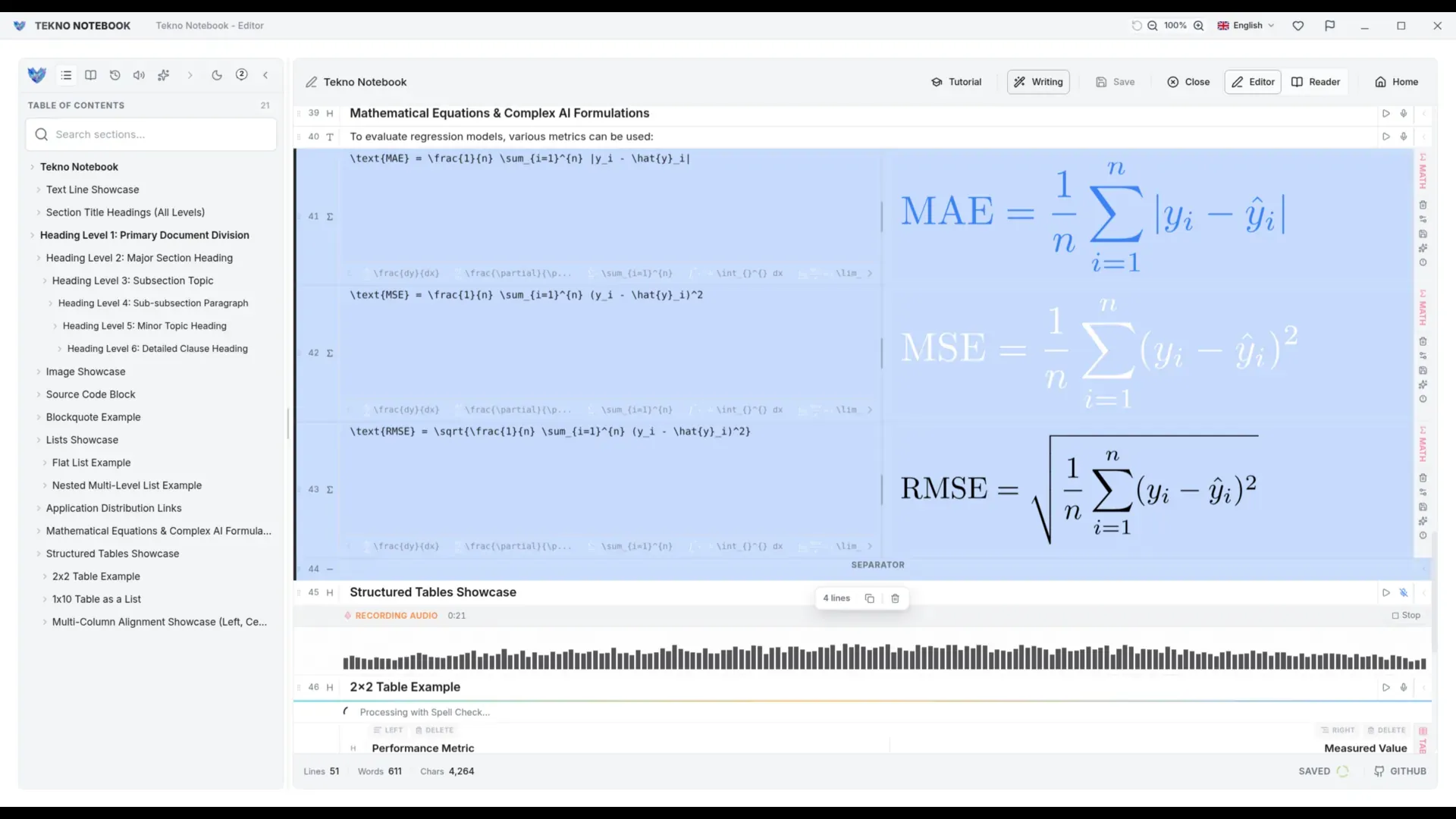
From Fast Lecture Derivations to Print-Ready PDFs
Keep your formulas, derivations, and diagrams together in one offline notebook.
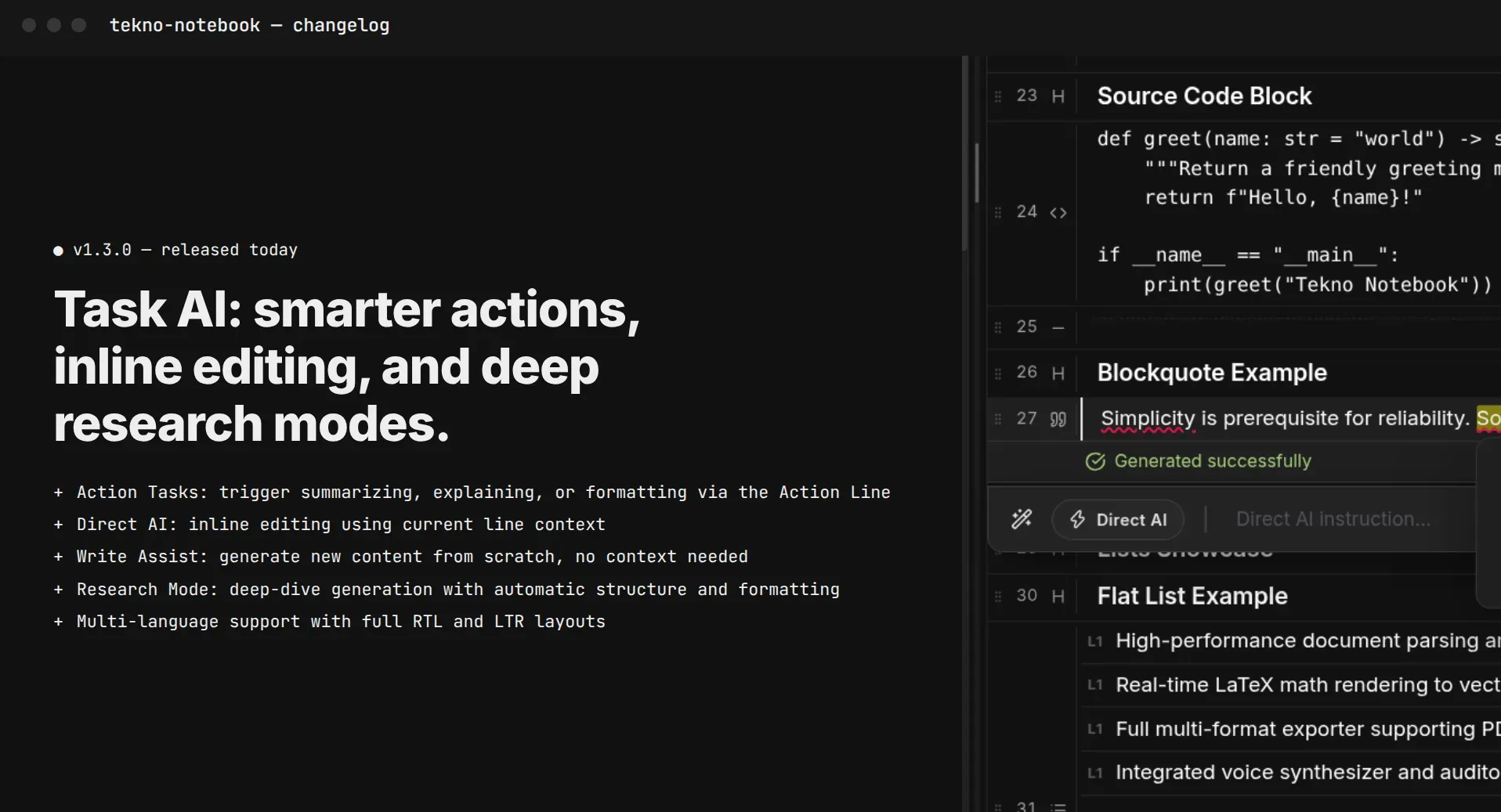
Inside Tekno Notebook, you type derivations directly alongside explanations and images, seeing crisp rendered equations in real time.
Typing an equation should move at the speed of your solution—not the speed of hunting through a symbol dropdown.
When your homework or exam sheet is ready, export directly to PDF or LaTeX in a single click.

Tekno Notebook
Type Calculus and Physics Formulas at Full Keyboard Speed in Tekno Notebook
Tekno Notebook combines instant LaTeX autocomplete and live preview with clean text notes and one-click PDF/LaTeX export—100% offline.
- LaTeX autocomplete speeds up fractions, integrals, vectors, and matrices
- Instant live preview renders every formula without compiling full documents
- Mix plain explanations, code blocks, and math cleanly on one page
- One-click export to clean PDF or LaTeX for assignments and exam sheets