Wake-on-LAN Explained: Power On Your Home Server or PC Only When You Need It
Leaving a desktop or secondary server running 24/7 wastes electricity and adds heat. Learn how Wake-on-LAN boots sleeping machines over your local network in seconds.
How Can a Network Cable Turn On a Powered-Off Computer?
Wake-on-LAN listens for a tiny Magic Packet addressed to your network card's MAC address.
Many tech students and homelab builders leave a desktop PC or backup server idling all week just in case they need it for one hour. Wake-on-LAN (WoL) cuts that waste: the machine stays powered off while the Ethernet adapter draws a fraction of a watt waiting for a wake signal.
4 Steps to Enable Wake-on-LAN
- Connect the target machine via wired Ethernet—wireless wake support is inconsistent across hardware.
- Open BIOS/UEFI settings and enable Wake-on-LAN or Power On By PCI-E.
- Enable WoL on the network adapter inside your operating system and note the card's MAC address.
- Send a Magic Packet from another device on your LAN and watch the machine boot in seconds.
# Example: Send a Wake-on-LAN Magic Packet on Linux
wakeonlan AA:BB:CC:DD:EE:FF

# Check network interface WoL status
ethtool eth0 | grep Wake-on
Reach Your Newly Woken Services Without Hunting for IPs
Keep every local tool organized in one clean home screen ready the second your server boots.
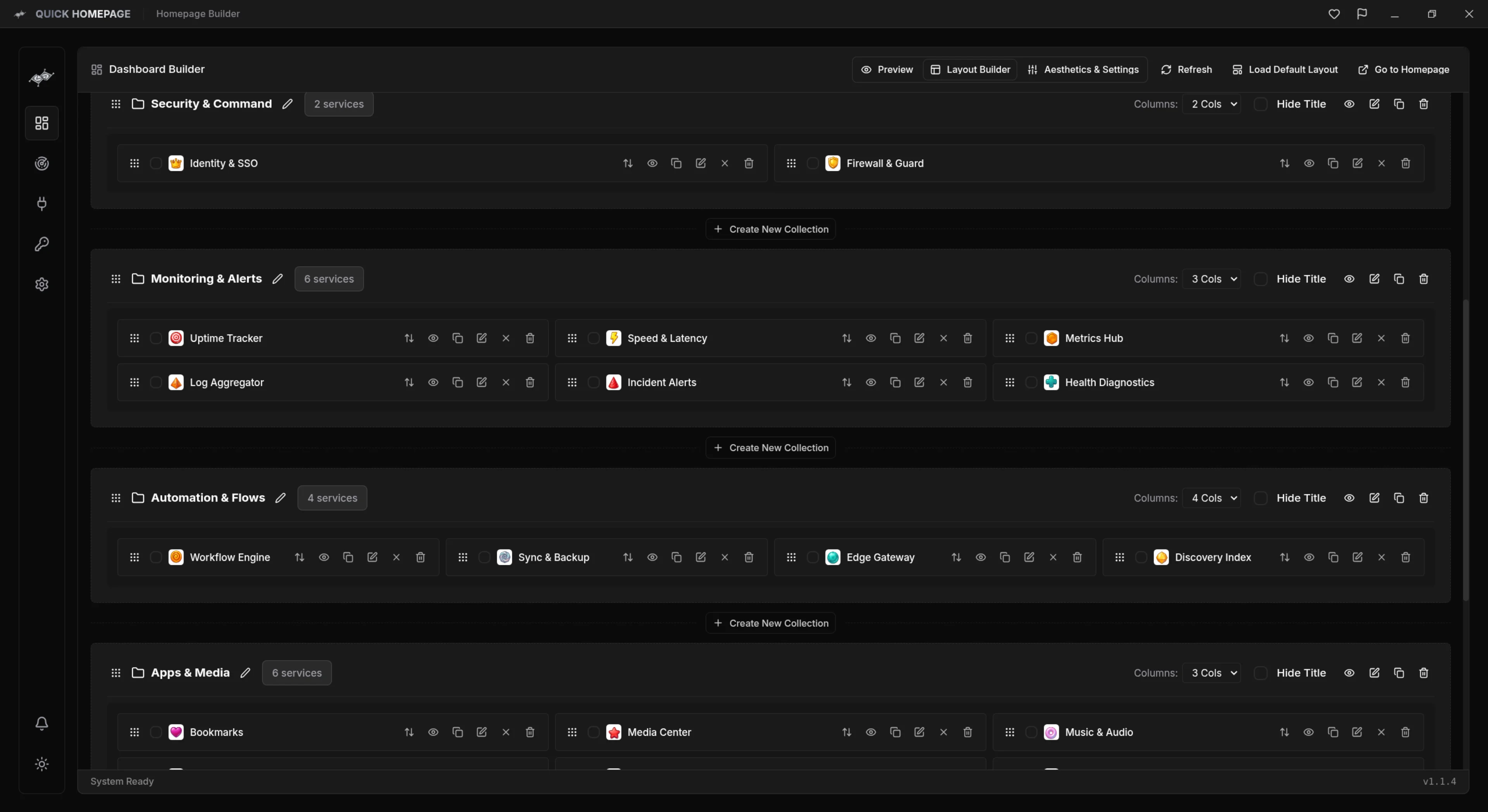
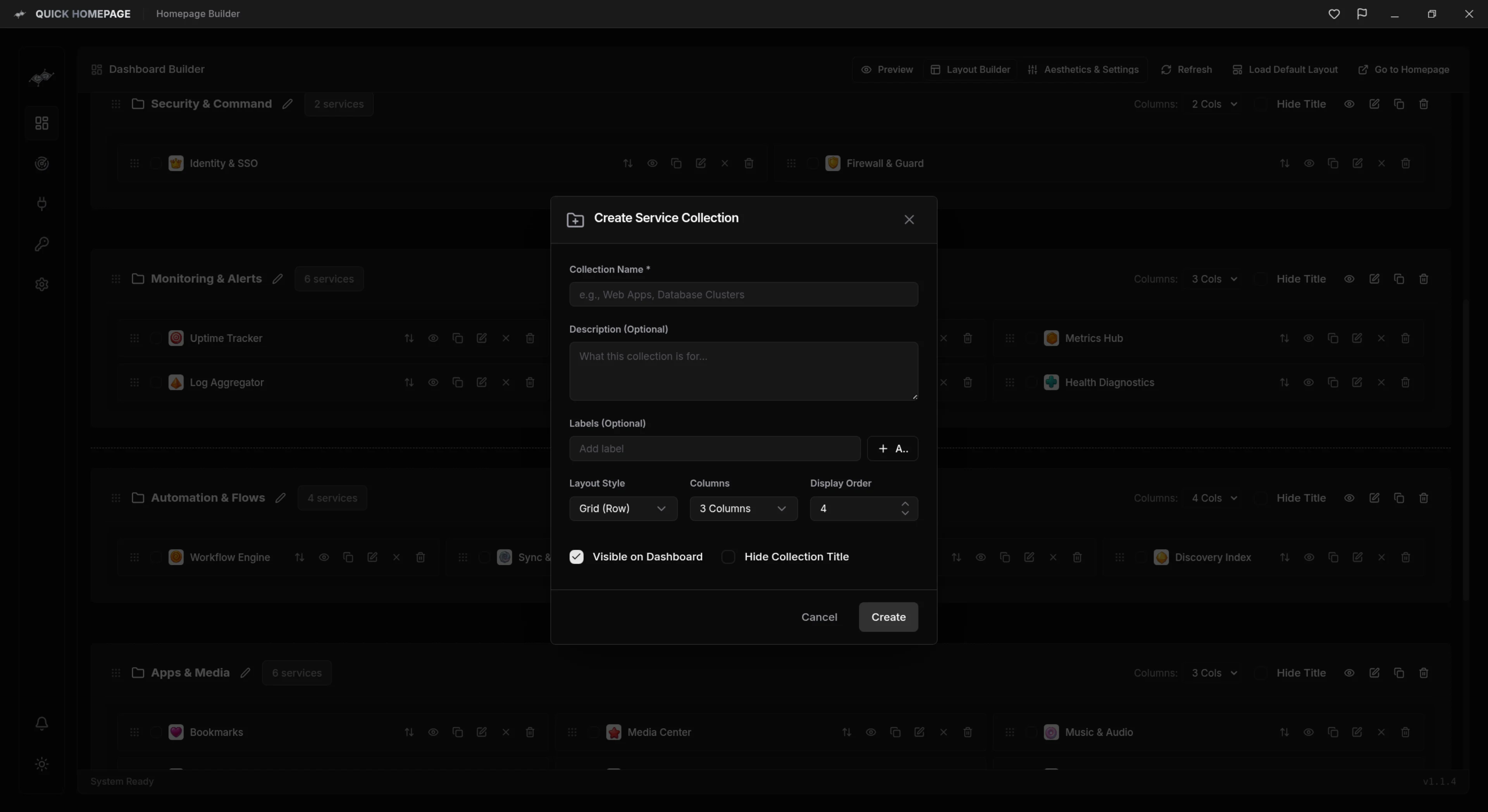
Once your desktop or secondary server wakes up, Quick Homepage automatically spots active local services and keeps them sorted into clear collections—so you jump straight into your tools with one click instead of digging through bookmarks.
Powering machines on only when needed extends hardware life and shrinks power bills without sacrificing convenience.

Quick Homepage
The Moment Your Machine Wakes Up, Launch Every Service From Quick Homepage
Quick Homepage automatically discovers active services on your local network and groups them into tidy collections with live widgets and one-click access.
- Auto-discovers local services as soon as machines come online
- Organize servers and lab nodes into clean, purpose-built collections
- Fast visual editor for updating links and settings in seconds
- Extensible widgets to monitor what is live across your LAN