Ping vs Traceroute Explained: How to Pinpoint Internet Lag and Packet Loss in 60 Seconds
Video calls freezing or ping spiking despite a fast speed test? Two built-in commands instantly reveal whether lag comes from your Wi-Fi, your router, or your ISP.
How to Tell in 60 Seconds Whether Lag Starts Inside Your Home or at Your ISP
Standard speed tests measure download throughput, not where packets are dropping.
Your download speed can look great while video calls still stutter and games rubber-band. The culprit is usually jitter or packet loss—and two built-in commands on Windows and Linux pinpoint the exact bottleneck before you ever call support.
Ping vs Traceroute: What Each Command Actually Shows
1. Ping — Is the Connection Steady or Dropping Packets?
Ping sends small repeated probes to one target (like your router at 192.168.1.1) and measures round-trip time in milliseconds. Timeouts or huge spikes against your own router prove the issue is local Wi-Fi interference or a bad cable.
2. Traceroute (or tracert) — Which Hop Causes the Delay?
Traceroute maps every hop your traffic crosses on the way out. If hop 1 (your router) stays crisp at 1–3 ms while hop 3 or 4 spikes sharply, the congestion sits upstream with your ISP.
# Step 1: Ping your router first (checks local Wi-Fi / cable)
ping -c 10 192.168.1.1

# Step 2: Trace where latency jumps on the route out
# Windows: tracert 1.1.1.1
# Linux:   traceroute 1.1.1.1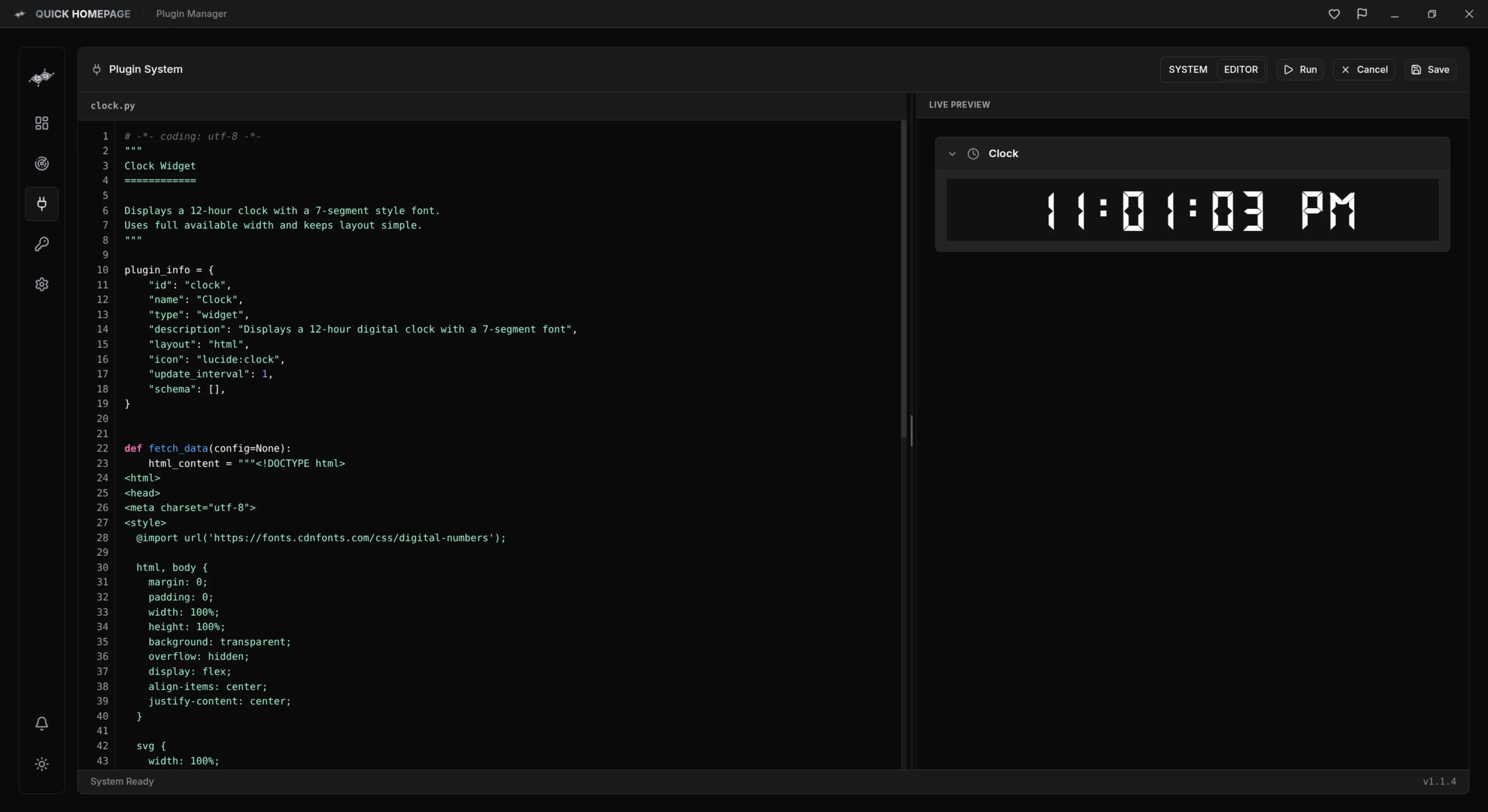
3 Fast Takeaways From Your Diagnostic Output
- Spikes or timeouts pinging your router (192.168.x.x): test a wired Ethernet cable or move closer to the access point.
- Rock-solid router ping with external packet loss: reboot the modem and report the hop to your ISP.
- Keep a lightweight live status widget on your desktop start page to spot local drops immediately.
Watch Your Local Network Pulse Without Opening a Terminal Every Time
One lightweight widget turns manual network checks into an effortless daily glance.
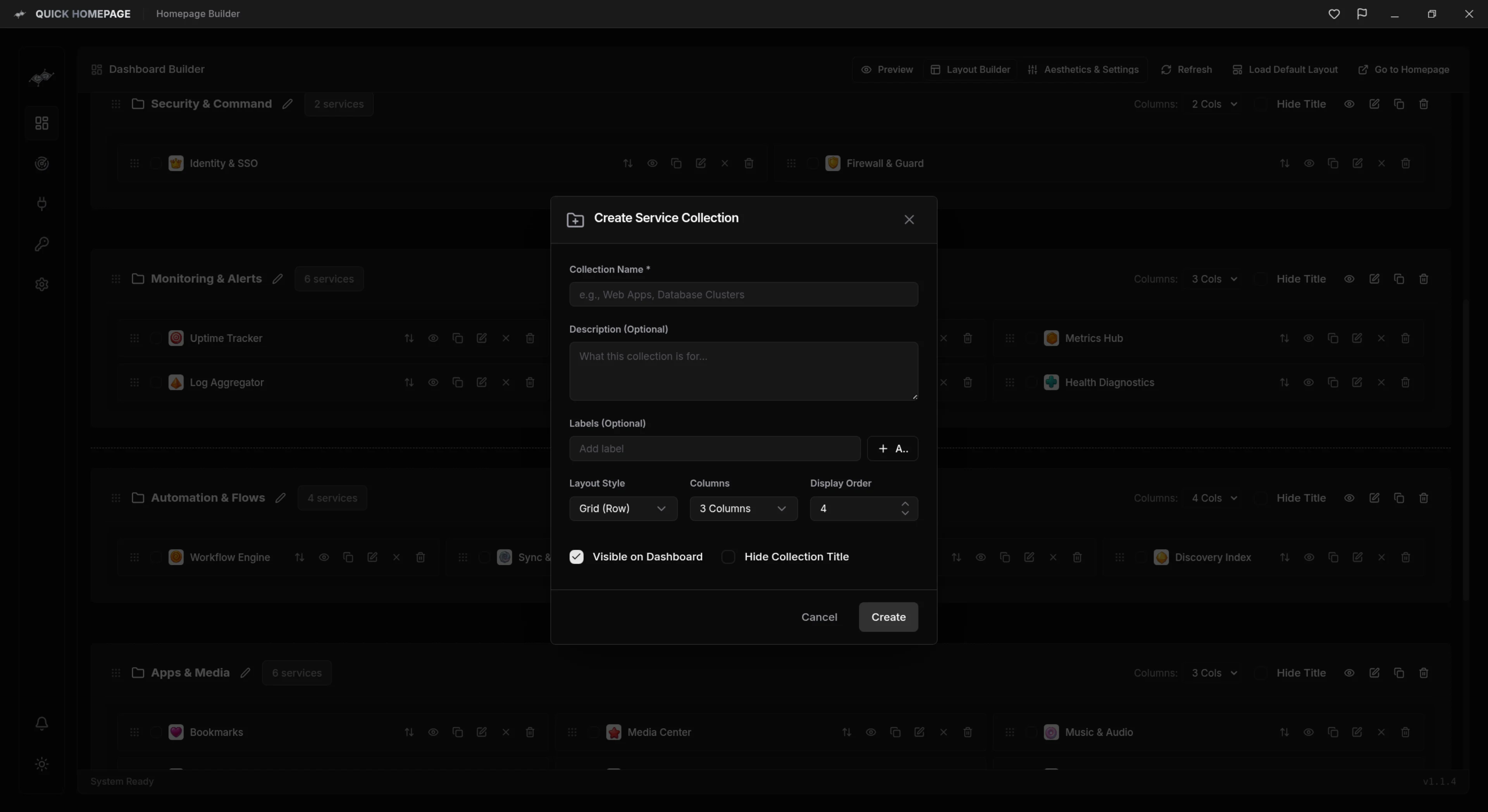
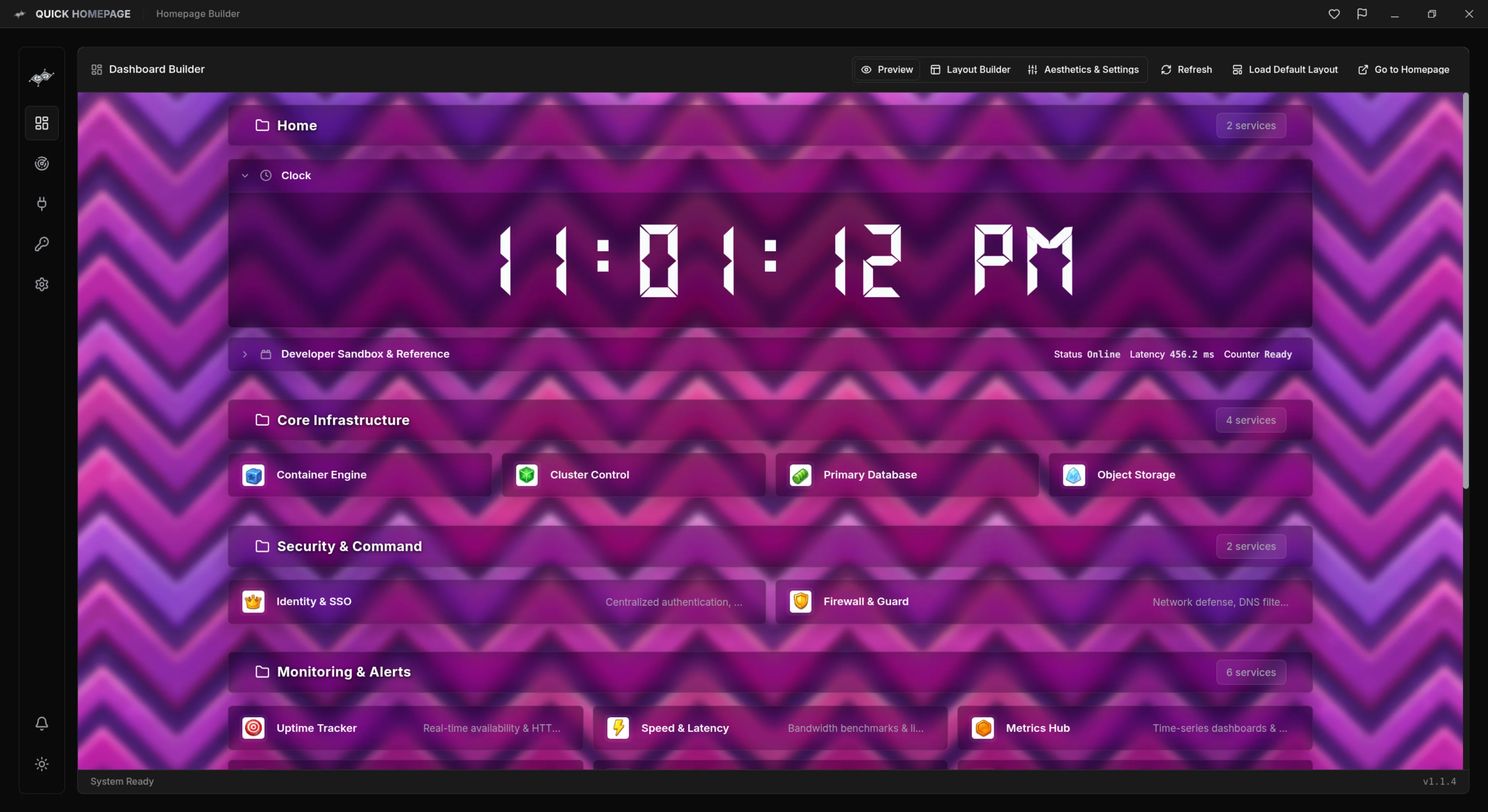
With Quick Homepage, you can add custom Python widgets to track router and LAN responsiveness right beside your admin panels—catching local hiccups in seconds.
One minute of real diagnostics beats an hour of blindly rebooting every box on your shelf.

Quick Homepage
Keep Router Health and Local Services Visible at a Glance in Quick Homepage
Pair your router and local tools with lightweight Python status widgets inside Quick Homepage so latency spikes never catch you off guard.
- Build lightweight Python widgets to monitor router and LAN ping
- Keep router settings and local tools grouped in one clean hub
- Auto-discovers active services across your local network
- Fast local desktop app for Windows and Linux