Localhost (127.0.0.1) vs 192.168 Explained: Why Your Local App Works on PC but Won't Open on Your Phone
Running a local app on localhost:3000 works great on your computer, then fails the second you try it on your phone. Learn what 127.0.0.1, 0.0.0.0, and 192.168 actually mean.
Why Typing localhost:3000 on Your Phone Always Fails
Localhost always points back to the exact device you are holding—never to your computer across the room.
Every developer and homelab beginner hits this wall once: your web app or local dashboard loads fine at localhost:3000 on your laptop, yet refuses to open on your phone over the exact same Wi-Fi. The reason is simple—your phone is looking for port 3000 inside itself.
127.0.0.1 vs 192.168.x.x vs 0.0.0.0 in Plain English
1. 127.0.0.1 (localhost) — Private Loopback Inside One Machine
Loopback traffic never leaves your computer's network stack. It is ideal for private testing, but unreachable from any other phone or PC on your Wi-Fi.
2. 192.168.x.x and 0.0.0.0 — Reaching Your App Across Wi-Fi
To open a local service from another device on your LAN, bind the server to 0.0.0.0 (all network interfaces) and visit your computer's private LAN IP—such as 192.168.1.25:3000.
# Only accessible on the same computer (loopback):
http://127.0.0.1:3000

# Listen on all LAN interfaces so your phone can reach it:
--host 0.0.0.0 --port 3000

# Open from another device on the same Wi-Fi:
http://192.168.1.25:3000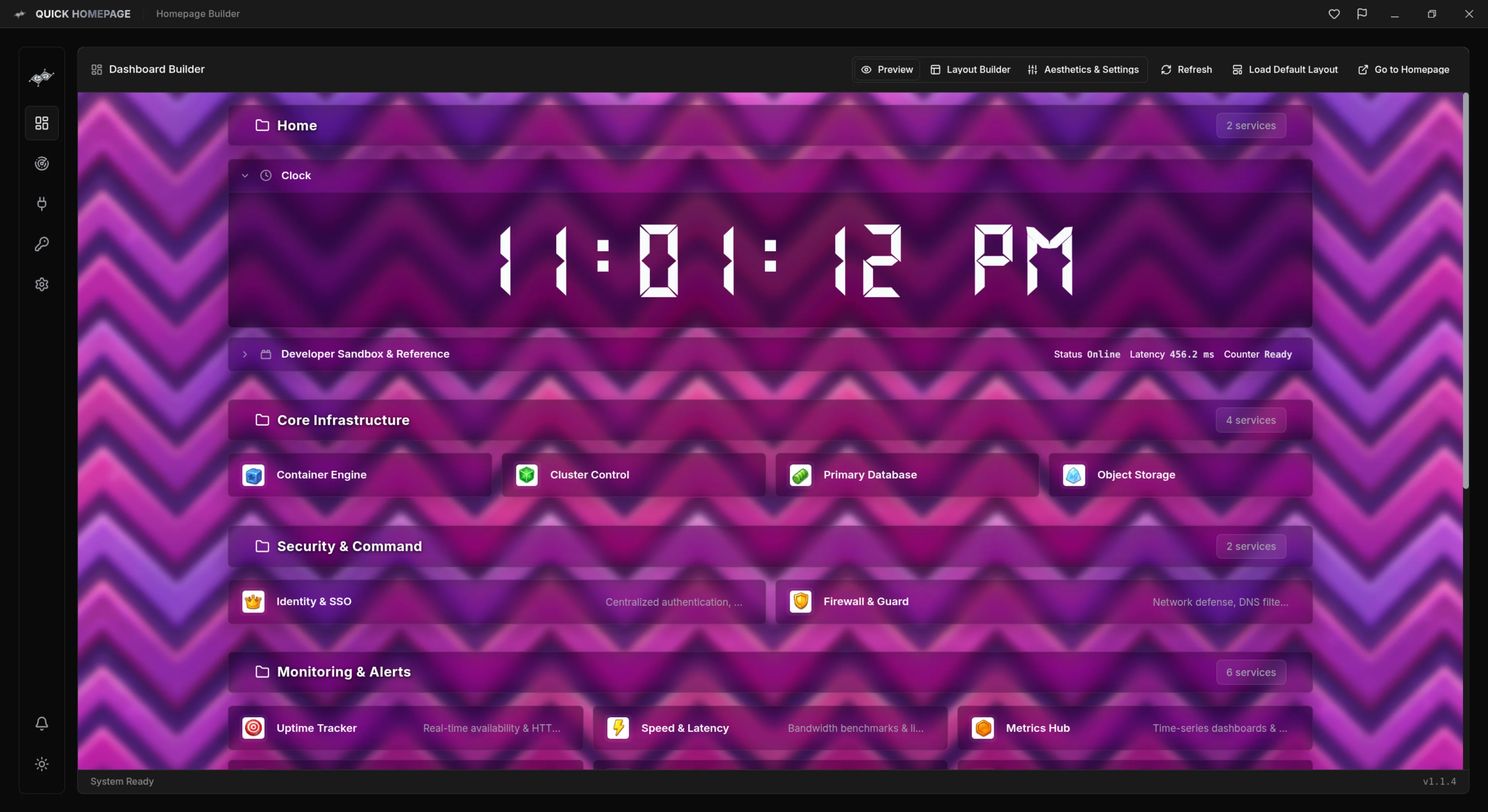
3 Quick Fixes When a Local Service Refuses to Load on Wi-Fi
- Verify the app binds to 0.0.0.0 instead of 127.0.0.1 only.
- Allow that specific port through your OS firewall on private networks only.
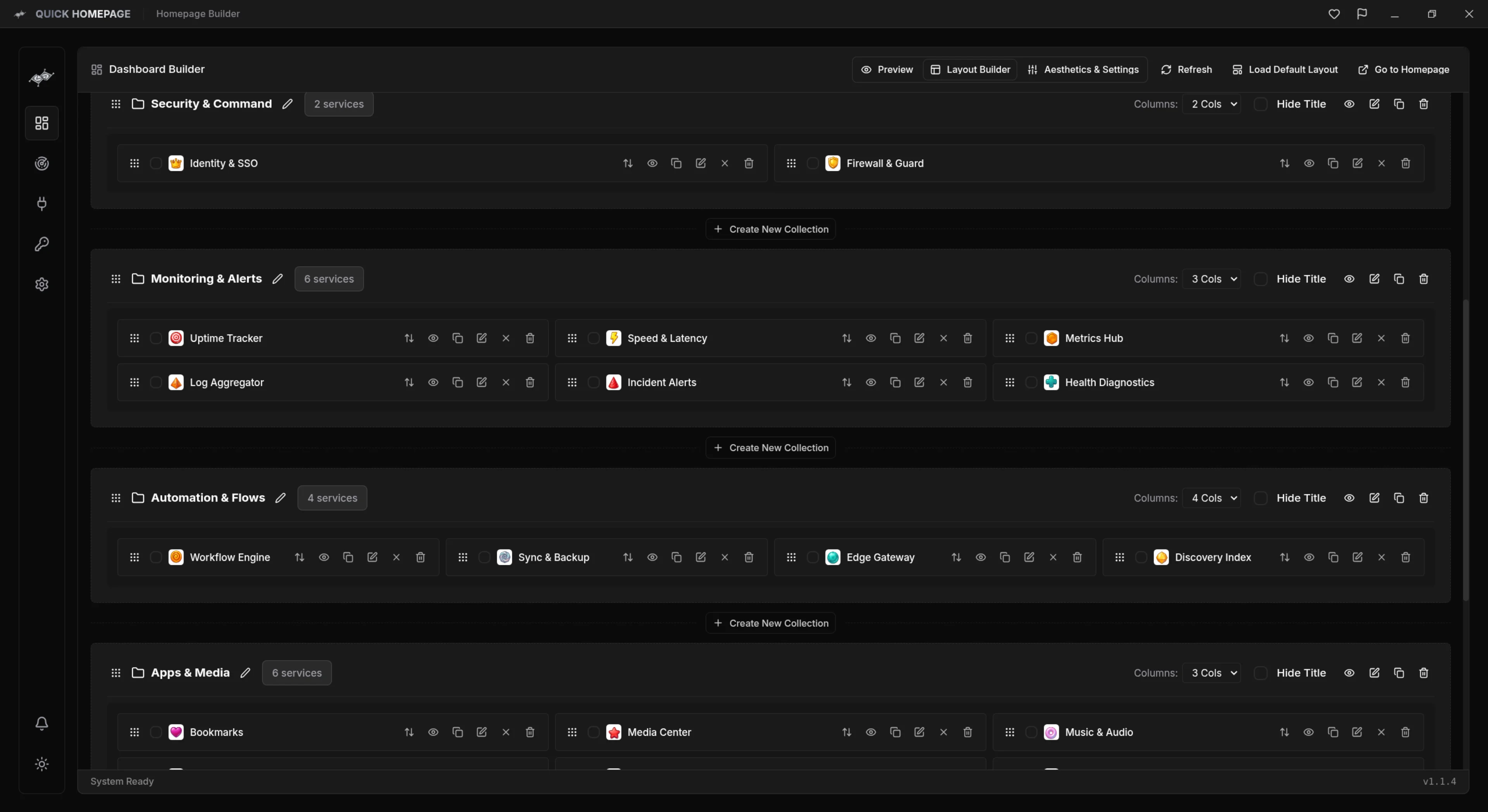
- Save all LAN services in one visual dashboard so you never retype IPs or ports.
Keep Every Local App One Click Away Across Your LAN
Once your services are reachable on your network, stop hunting for port numbers every morning.
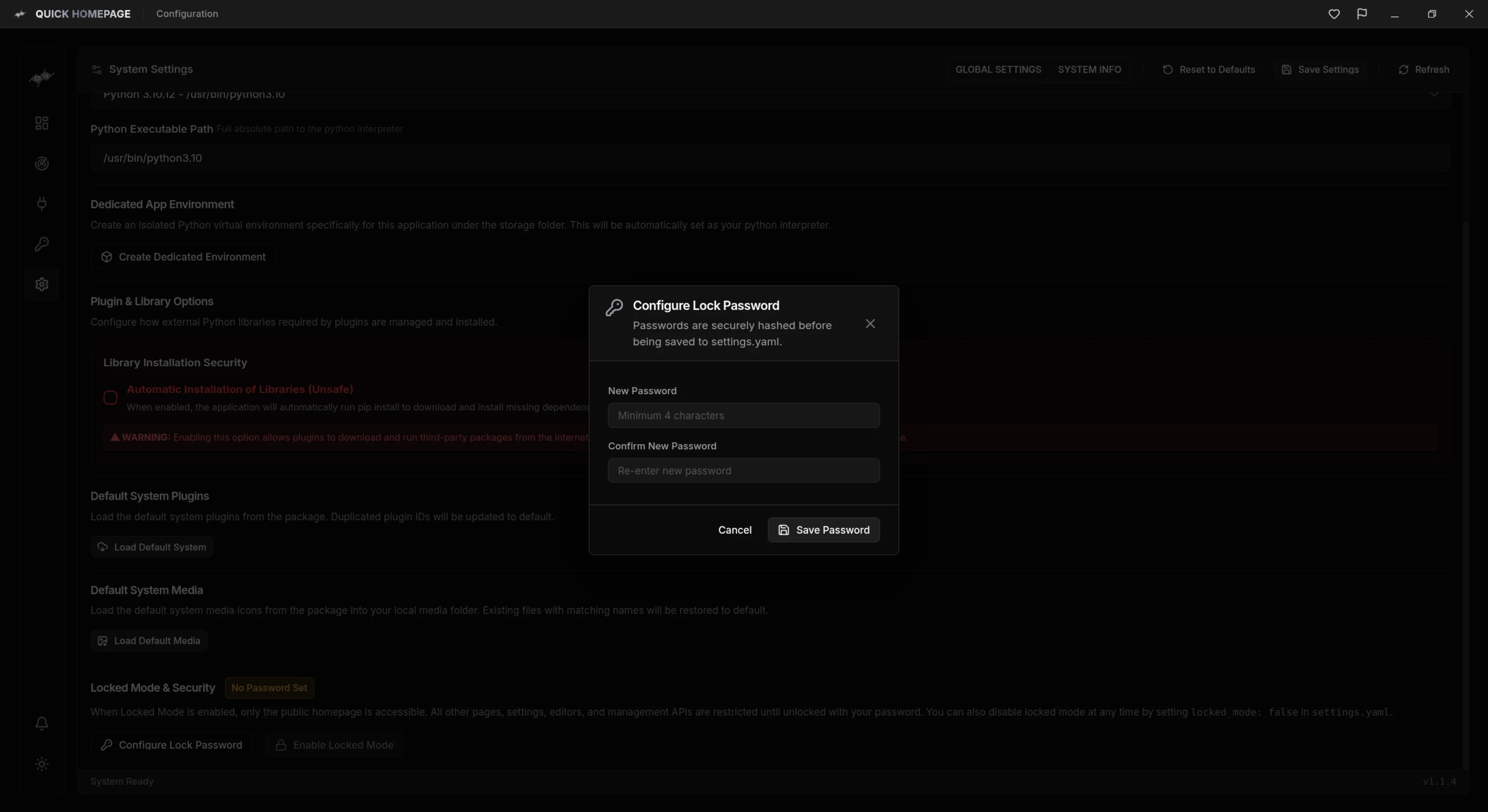
Quick Homepage automatically scans and organizes active LAN services into clean collections—so opening any dashboard or local tool takes one click instead of guessing ports.
Understanding 127.0.0.1 vs 192.168 saves hours of debugging—and a clean local launcher saves seconds every day.

Quick Homepage
Stop Guessing 192.168 IPs and Ports With Auto-Discovery in Quick Homepage
Quick Homepage automatically detects active services across your local network and displays them as crisp, clickable cards—no IP memorization required.
- Instant discovery of running 192.168 services on your LAN
- Replace raw IP and port strings with clean labeled cards
- Visual GUI editor updates links and ports in seconds
- Runs locally on Windows and Linux with zero cloud setup