How to Take Faster Lecture Notes in College Offline: A Keyboard-First Guide
Falling behind fast professors while fiddling with fonts and menus? Learn how to capture clean, structured lecture notes offline on your laptop with Tekno Notebook.
Why Formatting Menus Make You Miss Half the Lecture
Reaching for the mouse every 30 seconds to bold a heading breaks your listening flow.
The fastest note-taker in the lecture hall is not typing every word—they are capturing structure without ever lifting their hands from the keyboard.
Campus Wi-Fi drops constantly in large auditoriums, and heavy word processors force you to click through ribbons just to style a bullet list. By the time your heading looks neat, the professor has moved three slides ahead.
4 Practical Steps to Double Your Lecture Note Speed
- Capture main headings, definitions, and examples—never transcribe word for word.
- Stay keyboard-first so headings, lists, and formulas format automatically while you type.
- Drop a quick marker beside confusing points so you can ask or verify right after class.
- Spend 5 minutes after class dragging related blocks together while the lecture is still fresh.
How Tekno Notebook Keeps Up With Fast-Paced Classes
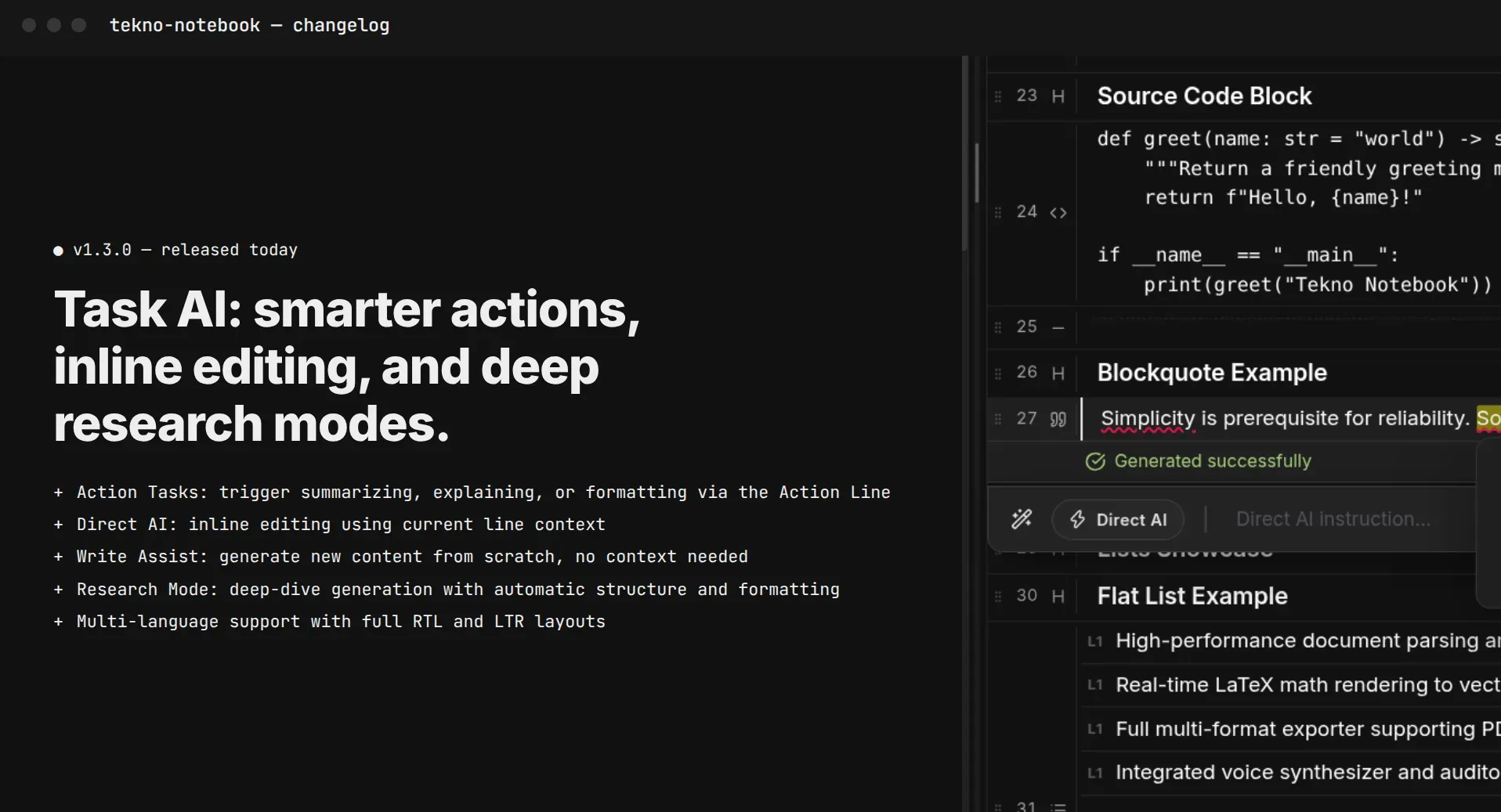
Built for uninterrupted keyboard flow and rapid cleanup with zero internet dependency.
When your study app launches instantly offline and stays out of your way, you spend your mental energy understanding the class instead of fighting software:
1. Smart Line Detection + Offline Dictation
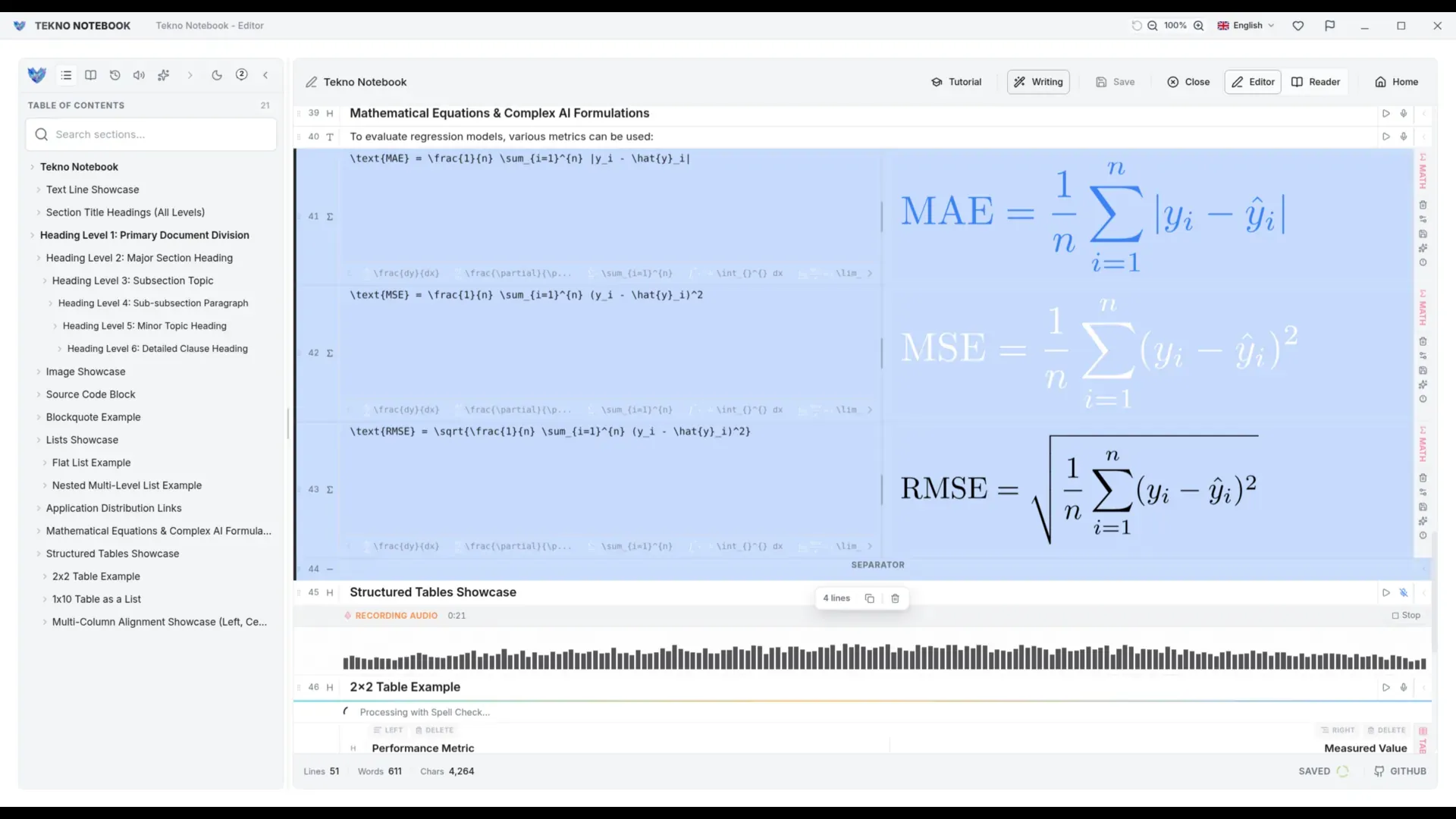
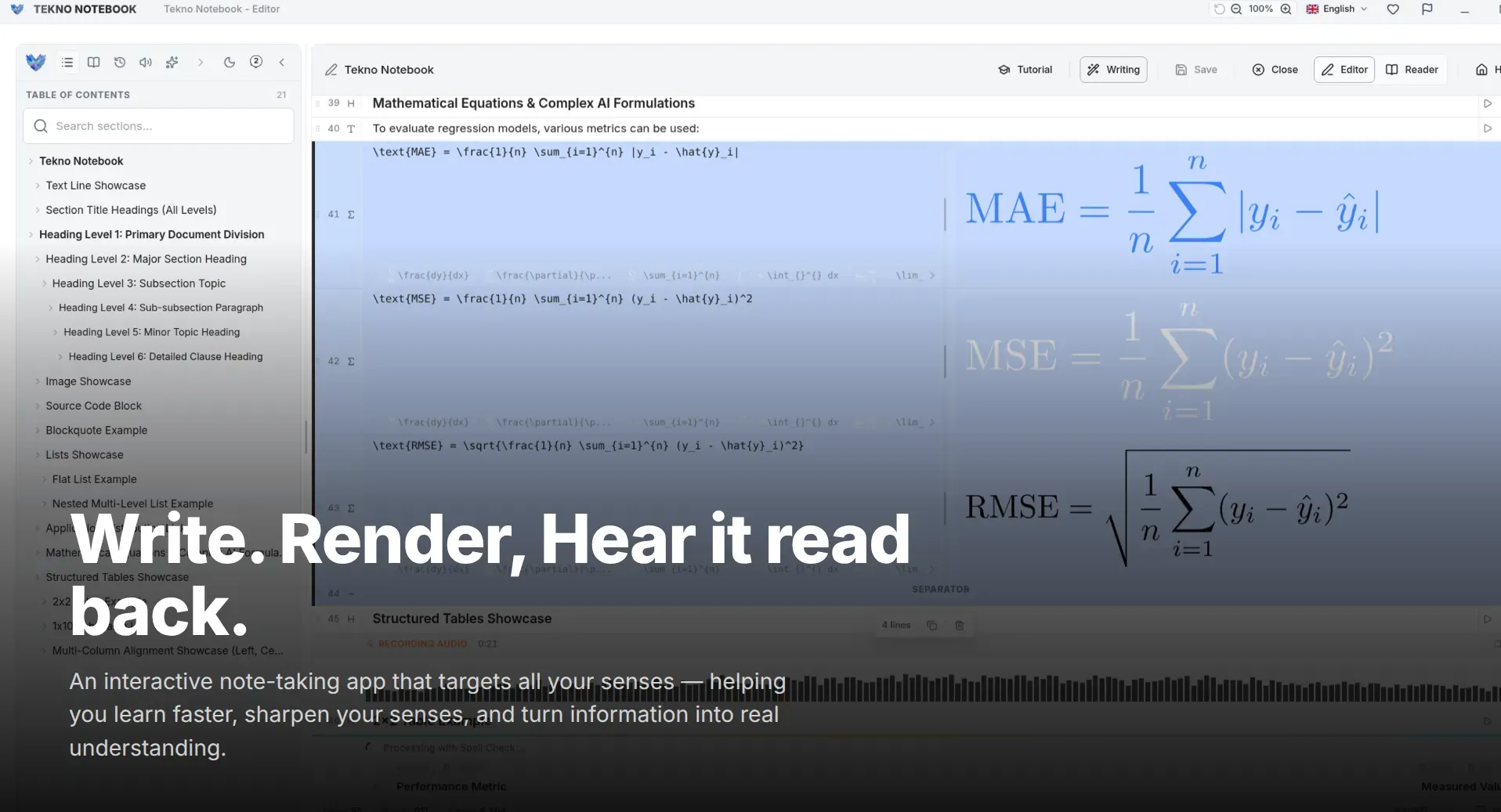
Tekno Notebook detects headings, checklists, code blocks, and LaTeX formulas automatically as you type—and lets you dictate quick post-class recaps offline with local Speech-to-Text.
2. Fix Out-of-Order Tangents With Drag Mode
Professors often jump back to an earlier topic in the final five minutes. Drag Mode lets you slide any block into its logical place in seconds without messy cut-and-paste.

Tekno Notebook
Keep Up With Fast Lectures and Reorganize Notes in Seconds With Tekno Notebook
Tekno Notebook combines keyboard-first Smart Line Detection, offline Speech-to-Text, and Drag Mode so students capture clean notes without touching a mouse or needing Wi-Fi.
- Smart Line Detection formats headings, lists, and code as you type
- Offline Speech-to-Text captures quick spoken summaries anywhere
- Drag Mode reorders messy lecture blocks in seconds
- 100% free and offline on Windows and Linux with no account required