How to Find All Running Services and Open Ports on Your Home Network Easily
Forgot which port a local app runs on—or want to see every active web panel on your LAN? Learn how to auto-discover and organize them in Quick Homepage.
Why Local Services and Port Numbers Disappear From Memory So Fast
Between printers, storage panels, cameras, and test apps, port numbers multiply faster than you can track them.
One of the most searched questions among homelab builders and everyday power users is simple: how do I find every running web service and open port on my home network without checking each box manually?
Two Ways to Map Your Active Local Services
1. Quick Terminal Port Checks
Command-line checks show raw listening sockets on a host, but they only spit out text tables—not a clickable daily hub.
2. Automatic Desktop LAN Discovery
A local desktop dashboard with built-in discovery finds active LAN services automatically and lets you pin the ones you use into clean groups immediately.
# Quick local check of listening TCP services on your machine
ss -tulnp

# Example local web services discovered on a home LAN
http://192.168.1.10:8006   # Hypervisor UI
http://192.168.1.20:8080   # Local Media / Files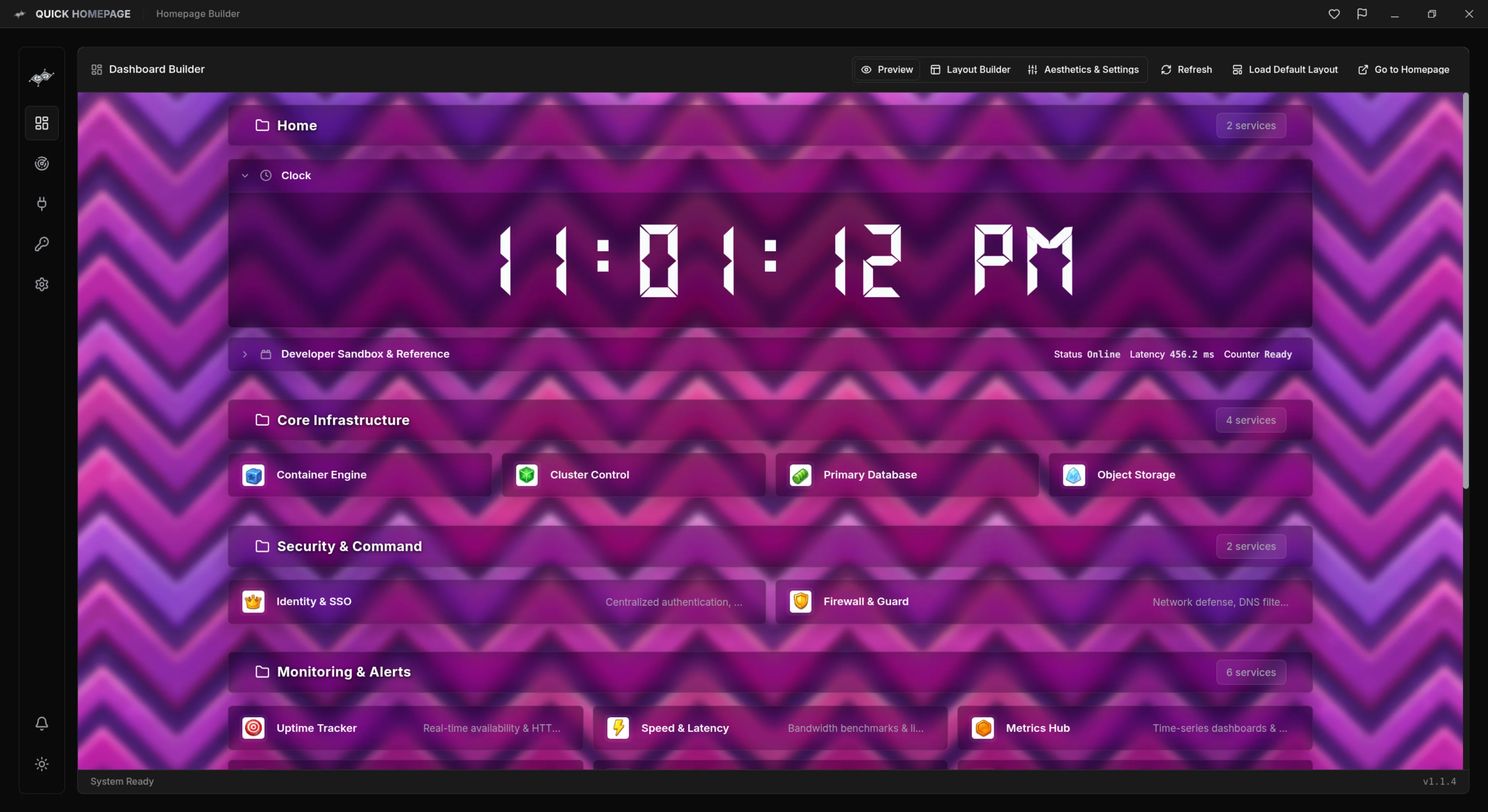
3 Steps to Organize Your LAN Right After Scanning
- Review every active service and shut down forgotten test containers you no longer need.
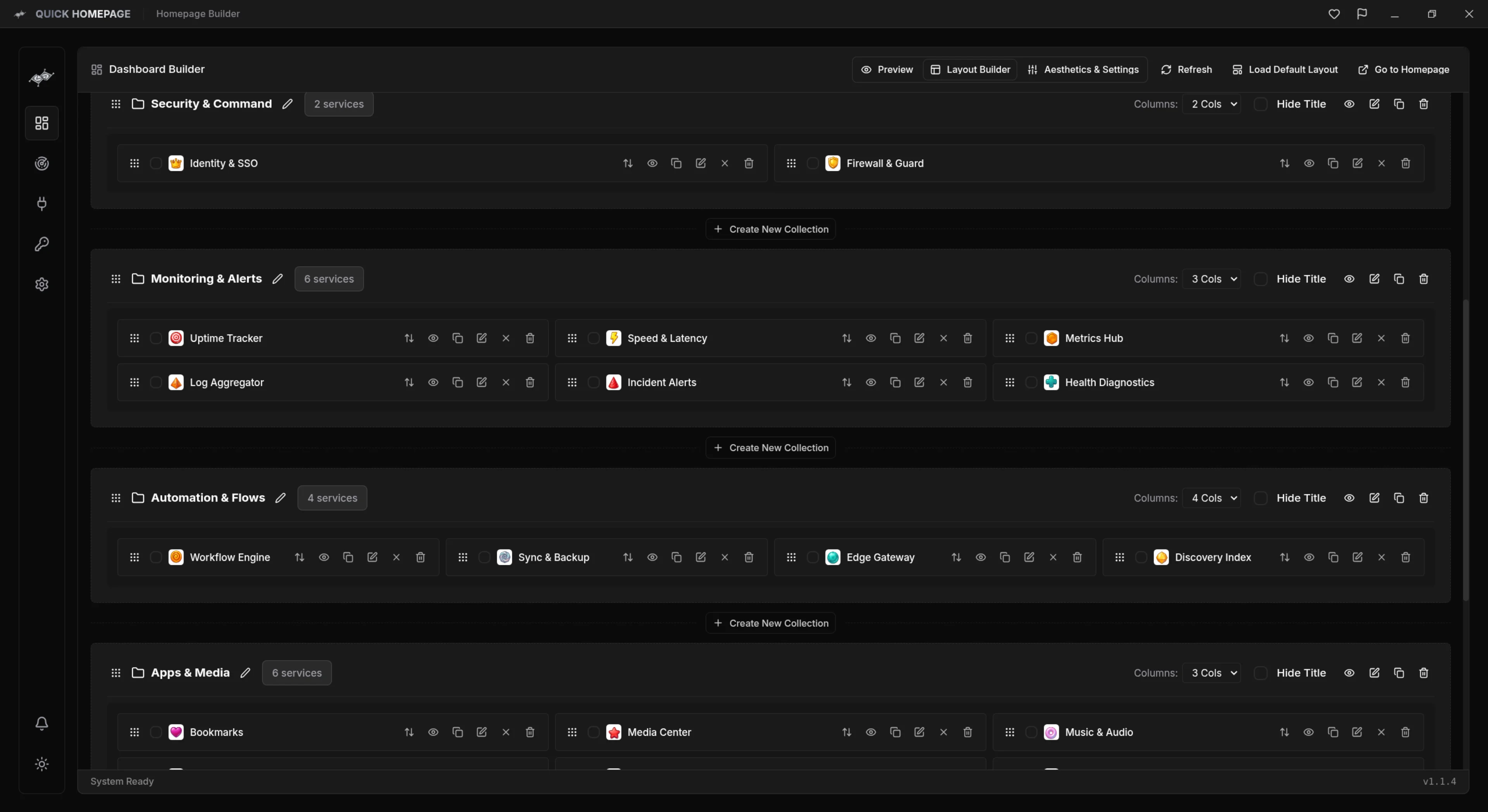
- Replace raw IP:Port URLs with human-friendly names and crisp icons.
- Group panels into clear collections (Network, Storage, Work) for one-click access.
Discover, Organize, and Launch Everything in One Click
Say goodbye to outdated IP spreadsheets and guessing port numbers.
Quick Homepage discovers running services on your LAN and transforms them into a fast, private desktop launcher for Windows and Linux.
A network whose active services you can see at a glance is always easier to manage and safer to run.
Try Quick Homepage today to keep a live, one-click map of every service in your home or office.

Quick Homepage
Discover Running Local Services and Launch Them in One Click With Quick Homepage
Quick Homepage scans your local network to surface active web services automatically and turns them into tidy, labeled cards—no spreadsheets or port memorization needed.
- Automatic discovery of active web services across your local network
- Save discovered services immediately with readable names and icons
- Visual GUI editor updates any URL or port in seconds
- Runs locally on Windows and Linux without uploading network details