How to Find Your Router IP Address and Connected Wi-Fi Devices in Seconds (Windows & Linux)
Need to open your router admin page or check who is connected to your Wi-Fi right now? Use these quick commands to find your Default Gateway and save every local panel.
The Fastest Way to Find Your Real Router IP Without Guessing
Not every router lives at 192.168.1.1—one quick command reveals the exact address in two seconds.
When Wi-Fi slows down or you need to update a password, typing 192.168.1.1 often hits a dead end because many routers use 192.168.0.1, 192.168.1.254, or 10.0.0.1 instead. Your router's true address is always listed as the Default Gateway.
Find Your Gateway and Connected LAN Devices on Windows & Linux
1. Locate Your Default Gateway (Router IP)
On Windows, run ipconfig in Command Prompt and read the Default Gateway line. On Linux, run ip route and grab the IP right after default via.
2. List Active Devices on Your Local Network
Running arp -a immediately prints nearby devices your PC has talked to along with their IP and MAC addresses—and logging into your router IP shows the full connected Wi-Fi client list.
# Windows: find Default Gateway (Router IP)
ipconfig | findstr /i "Gateway"

# Linux: find Router IP & nearby LAN devices
ip route | grep default
arp -a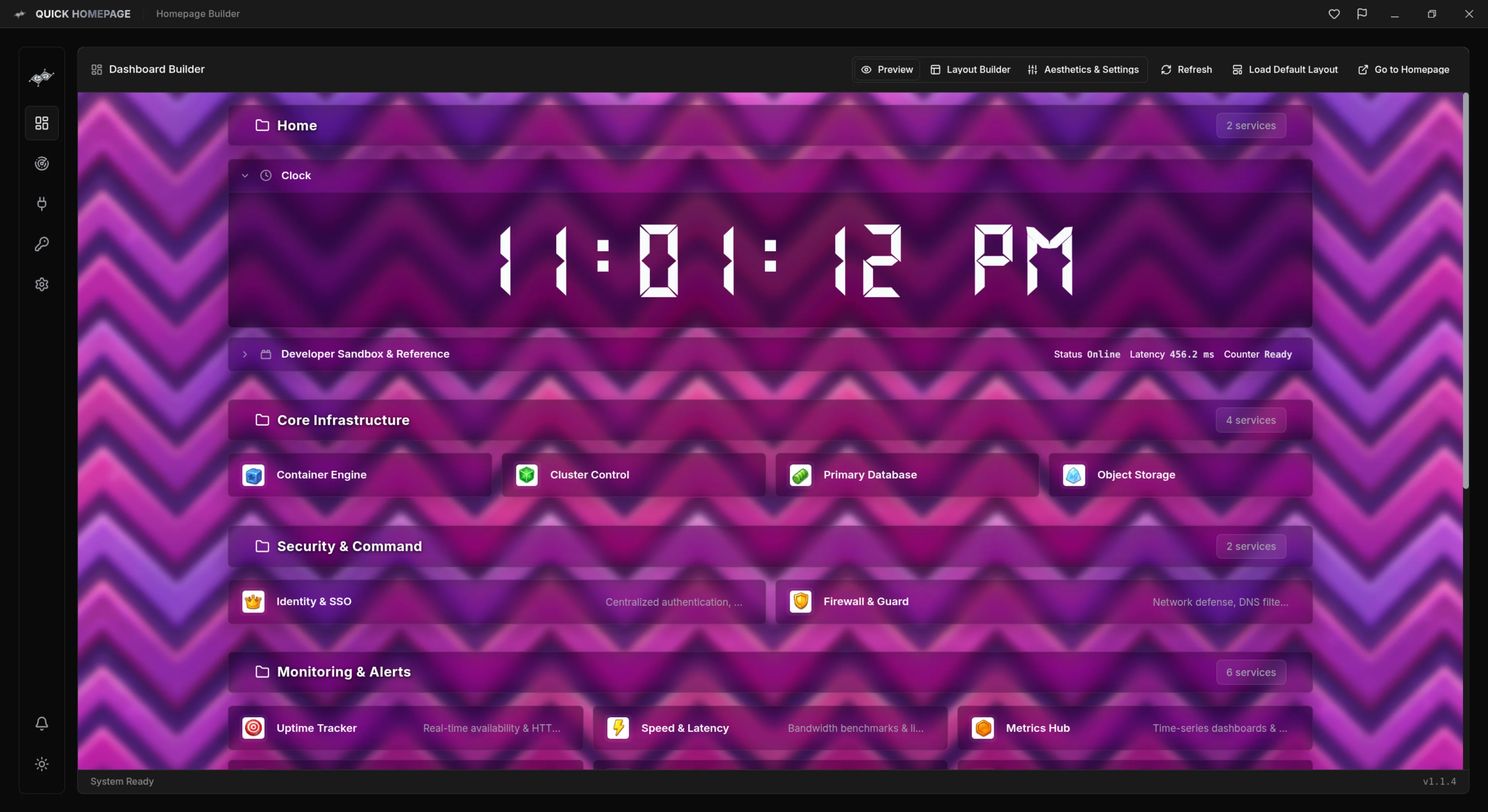
3 Quick Security Checks Once You Open Your Router Panel
- Replace the factory default admin password if it has never been changed.
- Scan the connected Wi-Fi devices list and verify you recognize every entry.
- Pin your router and local hardware panels into one dashboard so you never look them up again.
Open Your Router and Local Devices in One Click Next Time
Find the addresses once—then keep them organized forever.
With Quick Homepage, your router page, printer panel, and auto-discovered LAN services sit neatly inside a dedicated Network collection ready to launch in one click.
Knowing what is on your network does not require complex tools—just one clear map you can open in a second.

Quick Homepage
Keep Your Router Page and Local Devices One Click Away in Quick Homepage
Stop running terminal commands every time you need your router or printer panel. Quick Homepage auto-discovers LAN services and keeps them cleanly grouped.
- Automatic discovery of active services and admin panels on your LAN
- Save router, printer, and camera pages under clear labels
- Config Lock protects your layout from accidental edits
- Runs locally on Windows and Linux with complete privacy