Best Distraction-Free Writing Apps With Reader Mode and Table of Contents Navigation
Cluttered toolbars and endless scrolling break your flow in long notes. See why separating Editor and Reader modes with instant Table of Contents navigation in Tekno Notebook changes everything.
Why Cluttered Toolbars Kill Focus in Long Documents
Writing and reviewing use different parts of your brain—blending them slows both down.
When unnecessary controls disappear from your screen, your focus deepens and reviewing becomes effortless.
Most desktop editors cram dozens of ribbons across the top while forcing you to scroll endlessly through long lecture sheets. A focused writing app clears the noise and gives you instant structural navigation.
4 Essentials in a Top Distraction-Free Writing App
- Dedicated Editor and Reader modes so reviewing feels calm and clean.
- Built-in Table of Contents navigation in both writing and reading views.
- Flexible customization with balanced light and dark themes.
- Offline desktop speed free from browser tabs and notifications.
How Tekno Notebook Keeps Long Sessions Effortless
Every tool stays out of your way until you need it.
1. Instant Switch Between Editor and Reader Modes
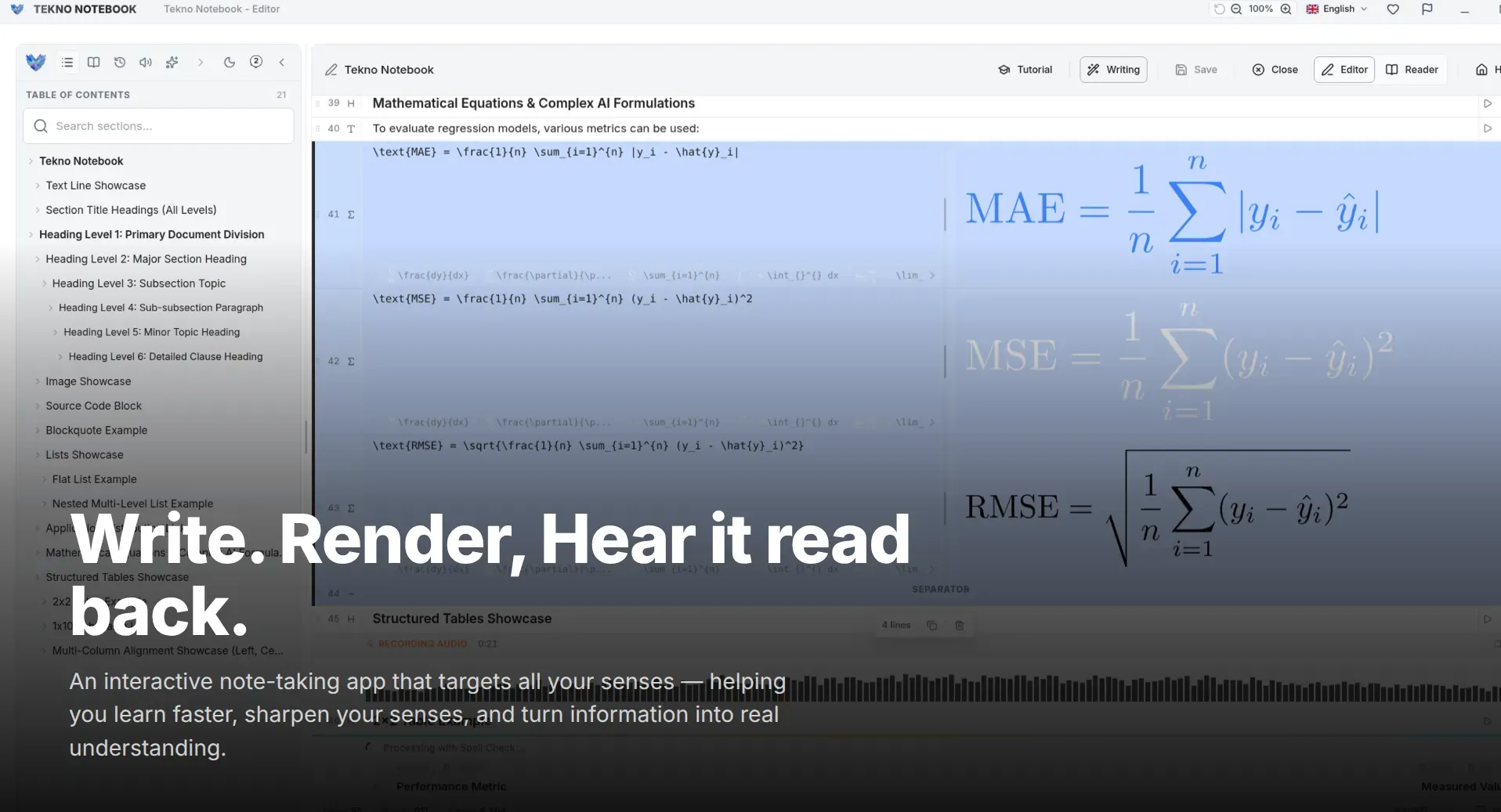
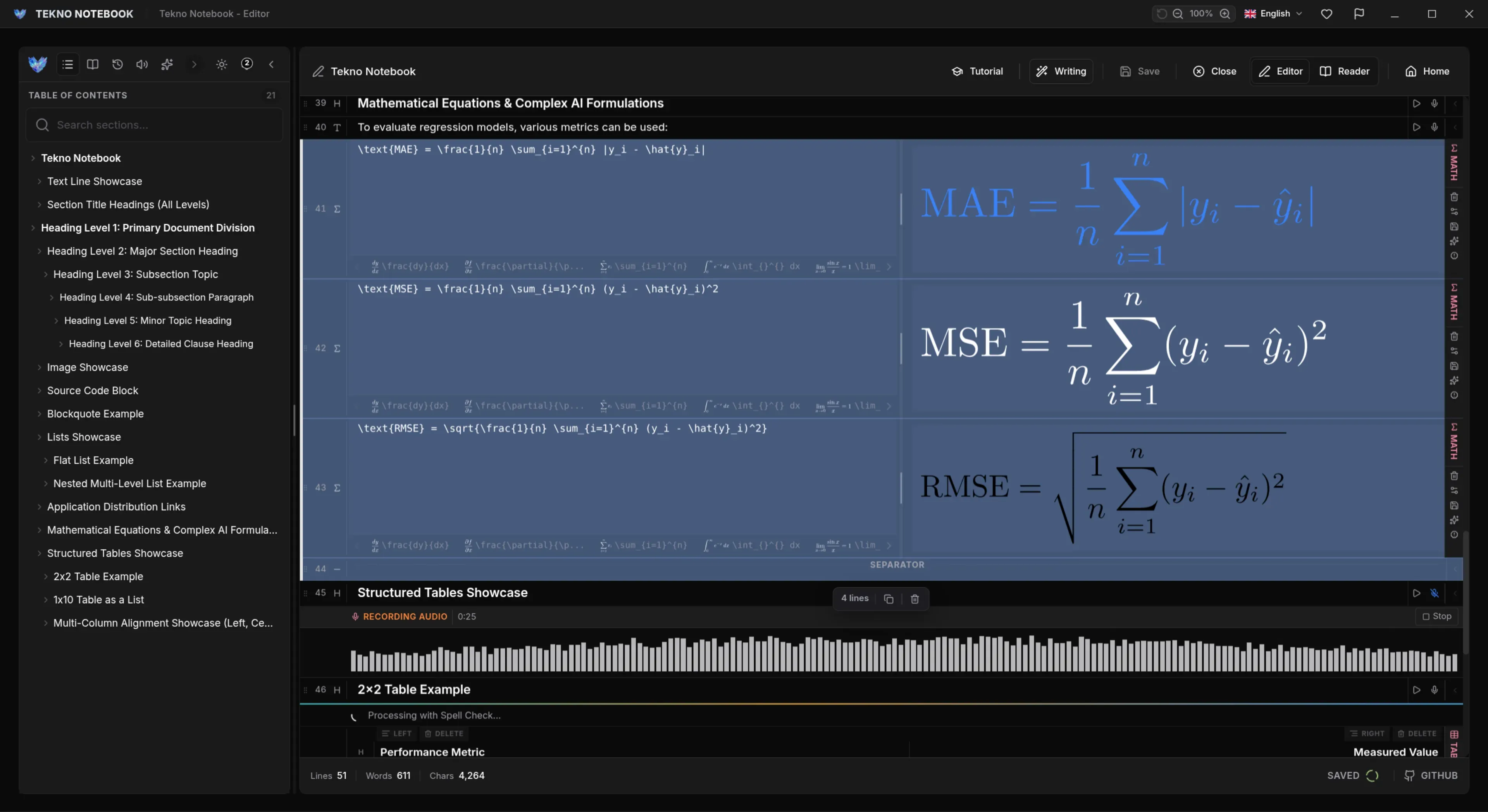
Draft freely in Editor Mode with full formatting speed, then flip into Reader Mode for a clean review layout—complete with built-in audio playback.
2. Table of Contents Navigation in Both Views
Whether you are editing a 20-page study guide or skimming sections before an exam, Tekno Notebook's Table of Contents jumps straight to any heading in one click.

Tekno Notebook
Write Calmly and Jump Anywhere in Long Notes With Tekno Notebook
Tekno Notebook separates Editor and Reader views, offers Table of Contents navigation in both modes, and lets you customize settings with clean light and dark themes.
- Two dedicated viewing modes: fast Editor Mode and calm Reader Mode
- Table of Contents navigation available in both Editor and Reader views
- Highly customizable settings with eye-friendly light and dark modes
- Built-in Audio Reader inside Reader Mode for hands-free review