169.254 IP Address (APIPA) Explained: Why Your PC Says 'No Internet' and How to Fix DHCP in 60 Seconds
Checked your IP and saw 169.254.x.x instead of 192.168.x.x while the internet is dead? It is not malware—learn what APIPA means and the 4 fastest ways to fix it.
What Does a 169.254.x.x IP Address Actually Mean?
It is a built-in fallback address your device invents when it asks the router for an IP and hears silence.
Seeing 169.254.x.x is actually a helpful clue: your computer is fine, it just cannot reach your router's DHCP server.
Whenever your laptop joins Wi-Fi or plugs into Ethernet, it broadcasts a request for a local IP address. If no router answers—due to a loose cable, a frozen router, or an exhausted DHCP pool—your OS assigns itself an Automatic Private IP Address (APIPA) in the 169.254.0.0/16 range. That address can never reach the internet, immediately telling you the breakdown is between your device and DHCP.
4 Fast Checks to Fix a 169.254 IP Address in 60 Seconds
- Reseat your Ethernet cable or check the switch port—a loose physical link is the #1 culprit.
- Power-cycle your router for 20 seconds to clear a stuck DHCP service.
- Verify that DHCP Server is enabled in your router and its IP pool has free addresses left.
- Reconnect Wi-Fi (or run ipconfig /renew) and confirm your IP returns to 192.168.x.x or 10.0.x.x.
Why a Local-First Start Page Shines During Network Outages
When external internet goes dark, local tools remain your lifeline.
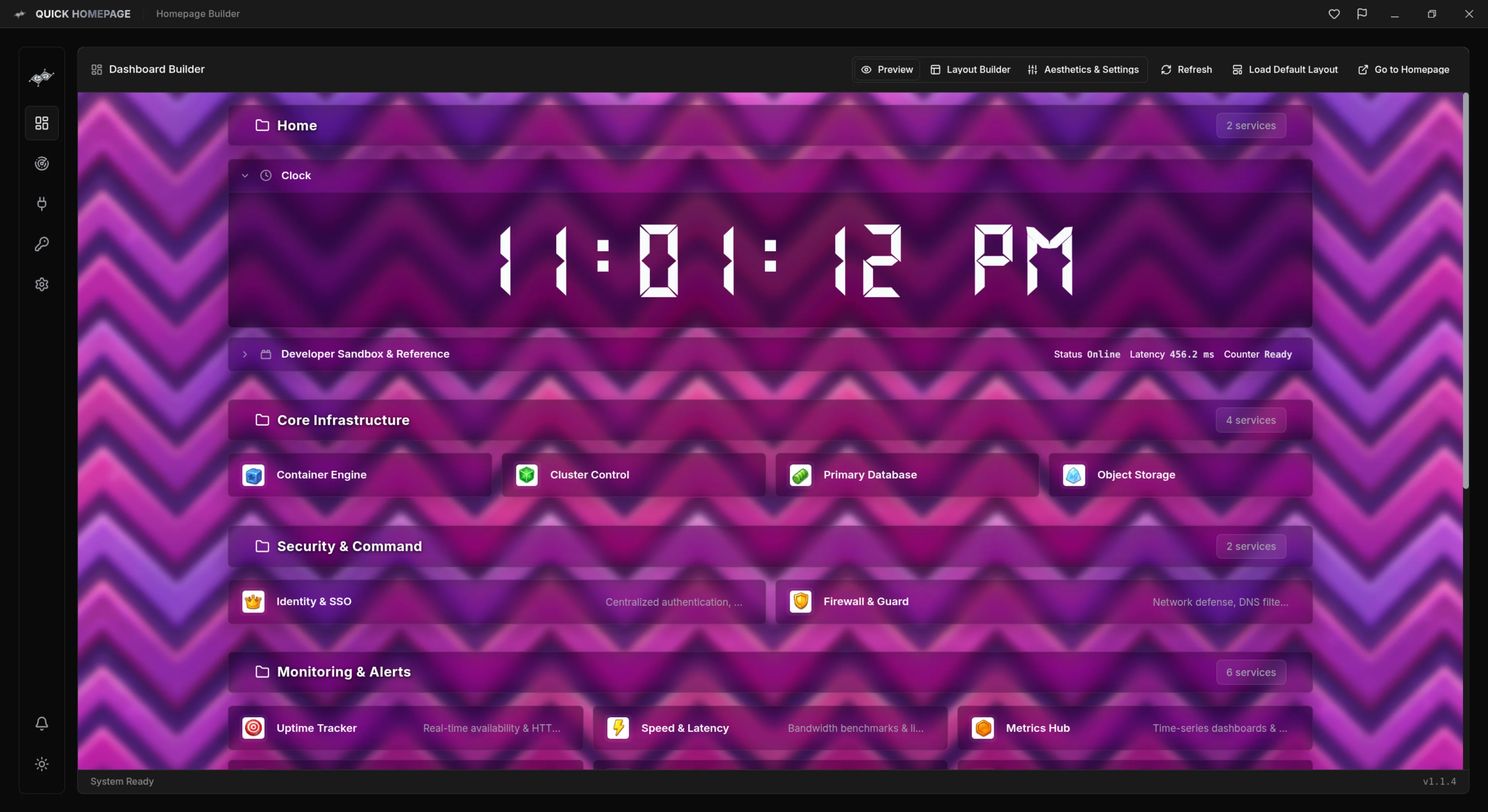
Keeping a local network collection inside Quick Homepage speeds up troubleshooting every time:
1. Open Router and Switch Panels Even Without Internet
Because Quick Homepage runs locally with zero cloud dependency, your router, switch, and server dashboards open immediately even when your ISP is offline.
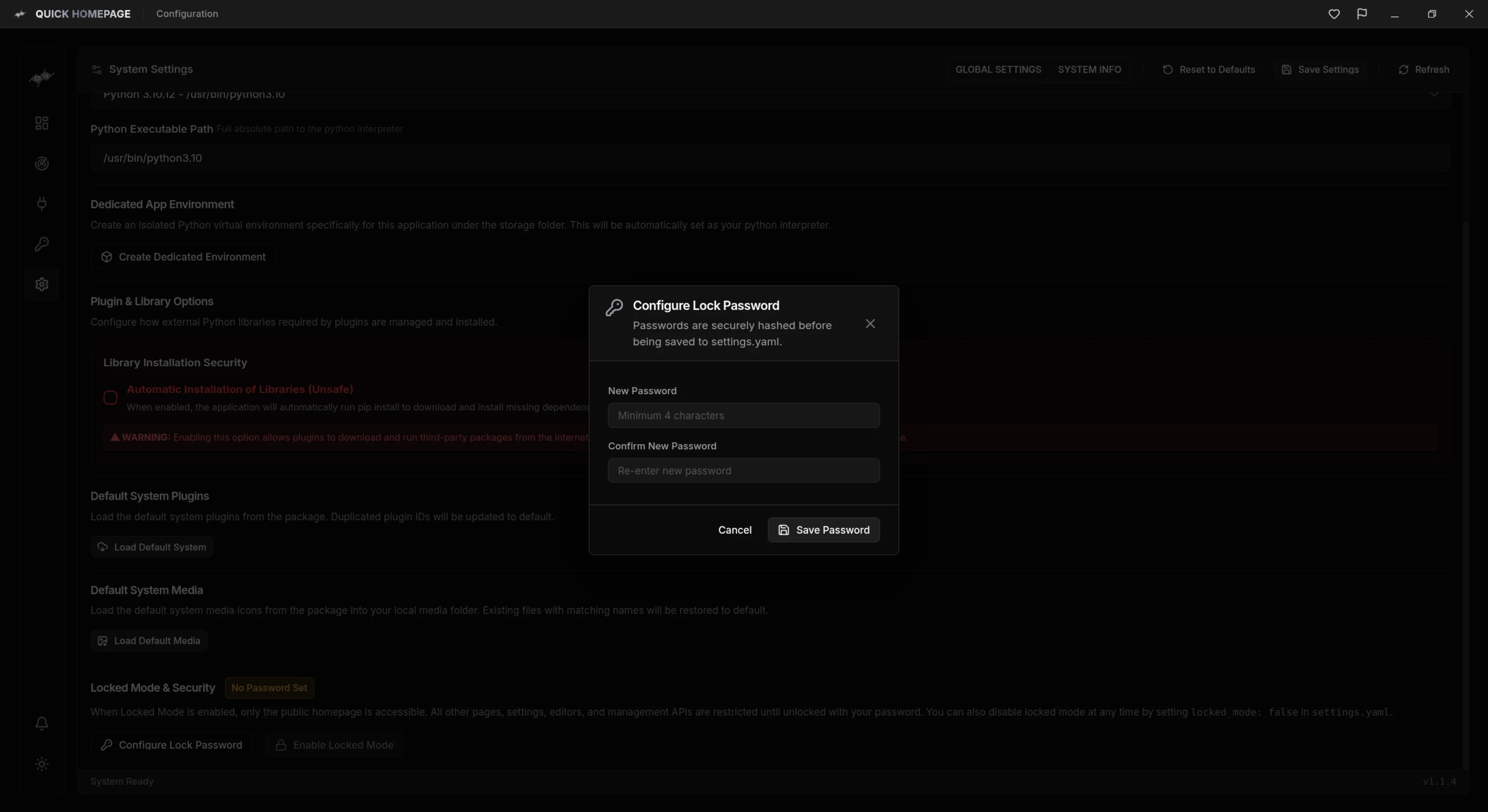
2. Protect Your Diagnostic Shortcuts With Config Lock
Once your Network Admin collection is set, toggle Config Lock so your core diagnostic panels stay exactly where you expect them.

Quick Homepage
Keep Router Panels and Local Network Tools One Click Away in Quick Homepage
Quick Homepage runs 100% locally on your desktop—even when external internet drops—giving you instant access to router dashboards and local services protected by Config Lock.
- One-click access to router panels and local network diagnostics
- Auto-discovers active web interfaces on your local subnet
- Config Lock keeps critical network shortcuts safe from edits
- Runs 100% locally even when your ISP internet is down