CGNAT Explained: Why Port Forwarding Fails on Home Internet (and How to Check in 30 Seconds)
Configured every router rule right, yet your home server or cameras remain unreachable from outside? Learn how CGNAT works, how to spot it fast, and safer alternatives.
Why Correctly Configured Port Forwarding Still Fails Silently
Your router might be fine—your ISP may be sharing one public IP across dozens of homes.
Countless home server owners spend hours tweaking firewall rules and router port forwarding only to watch external connections time out. The most common culprit today is Carrier-Grade NAT (CGNAT): because IPv4 addresses are scarce, many ISPs place your home router behind a second ISP-controlled router that blocks unsolicited inbound connections.
How to Check If You Are Behind CGNAT in 30 Seconds
1. Compare Your Router WAN IP Against Your Public IP
Open your router's Status page and read its WAN IP address. If it differs from your public IP—or falls inside the 100.64.0.0 to 100.127.255.255 range—you are behind CGNAT, and standard port forwarding cannot work.
2. Smarter Alternatives to Opening Ports
If you truly need remote access, you can request a dedicated public IP from your ISP, or use encrypted outbound tunnels and private mesh networks that bypass CGNAT cleanly without exposing raw ports.
# 1. Check the WAN IP shown inside your router's Status page.
# 2. If it falls inside 100.64.0.0 - 100.127.255.255, you are behind CGNAT!
# 3. Quick traceroute check (if hop 2 is 100.64.x.x -> CGNAT confirmed):
tracert -d 1.1.1.1   # Windows
traceroute -n 1.1.1.1 # Linux / macOS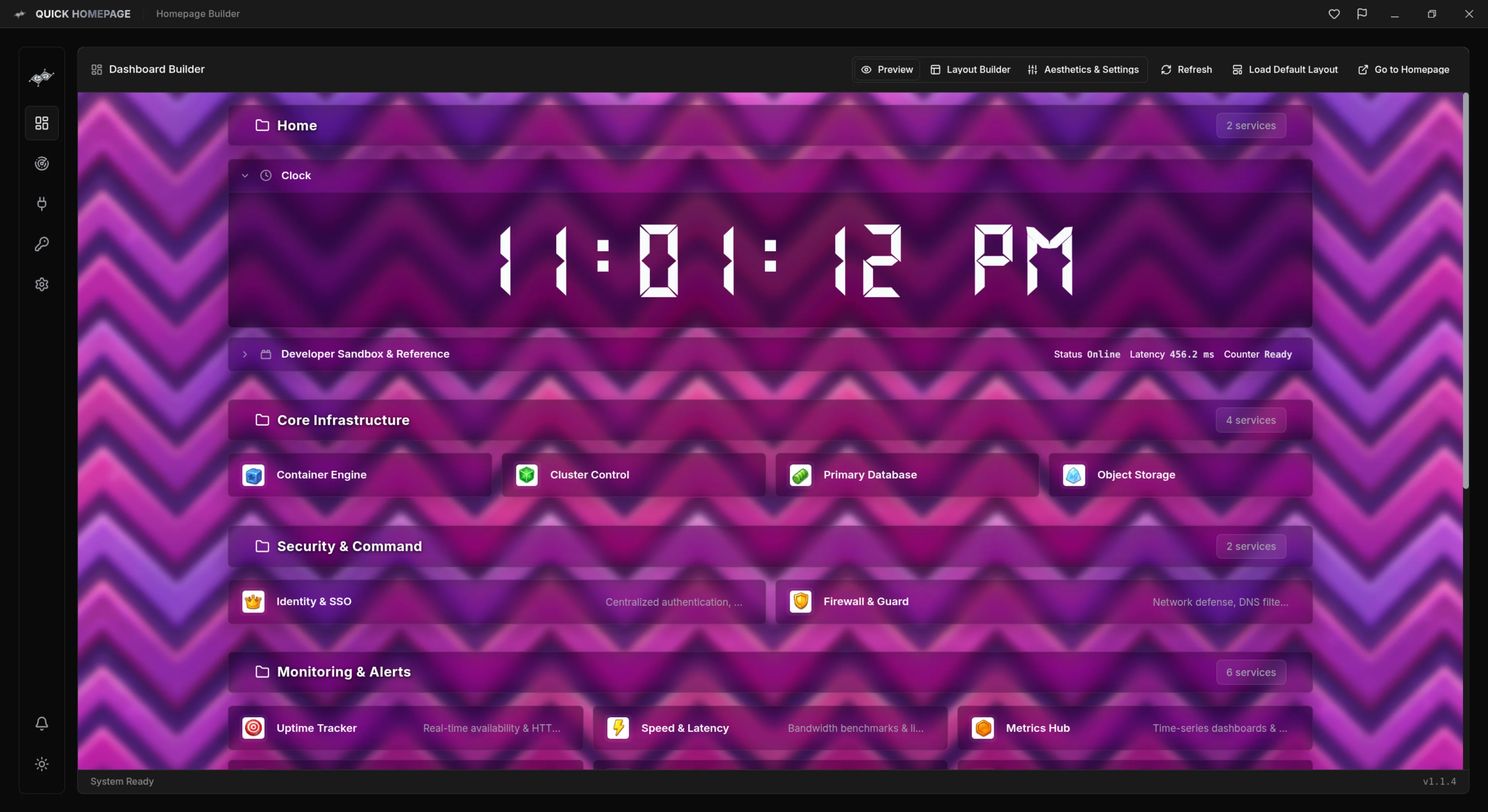
3 Rules Before Exposing Any Home Service Externally
- Verify the service runs reliably and stays clearly mapped inside your local LAN first.
- Check for CGNAT right away instead of wasting hours debugging router port rules.
- Keep a single local start page tracking every active service and port.
Keep Your Local Network Organized First With Quick Homepage
Whether you add encrypted remote access later or stay purely local, a clean LAN hub comes first.
Before wrestling with external access, give yourself a crisp local launcher that puts every server, printer, and tool one click away.
The most resilient home networks run effortlessly on the LAN and expose as little as possible to the public internet.
Quick Homepage automatically discovers running services on your local network and organizes them into clean collections—with zero port forwarding needed.

Quick Homepage
Auto-Discover and Organize Every Local Service in Quick Homepage
Before exposing a single port online, keep every local server and tool neatly discovered and grouped inside Quick Homepage—fast, visual, and local-first.
- Auto-discovers active services across your LAN in seconds
- Visual GUI editor manages local ports without manual configs
- Works 100% locally with zero open ports required
- Clean collections plus Config Lock for everyday reliability