2.4 GHz vs. 5 GHz Wi-Fi: Which Band Should You Pick for Speed, Walls, and Smart Devices?
Why does 5 GHz fly next to your router yet crawl one room away, while 2.4 GHz punches through thick walls? Here is how to assign every device for peak stability.
Why Neither 2.4 GHz Nor 5 GHz Wins Everywhere
Wireless physics is a simple trade-off: higher frequency brings faster speed but shorter reach through walls.
Put speed-hungry devices near your router on 5 GHz, and leave distant rooms and smart gadgets on 2.4 GHz for steady wall penetration.
Many people spot two network names—like Home and Home_5G—and assume 5 GHz is always better. In reality, 5 GHz delivers faster speeds and less neighbor congestion, yet drops off quickly behind concrete walls and closed doors. Meanwhile, 2.4 GHz travels farther through walls but shares crowded spectrum with neighbor routers, Bluetooth, and microwaves.
How to Split Your Household Devices Between Both Bands
- Put on 5 GHz: laptops, phones near the router, 4K streaming, video calls, and online gaming.
- Put on 2.4 GHz: network printers, security cameras, smart plugs, bulbs, and far bedrooms.
- If a smart gadget refuses to pair, split your SSIDs temporarily—many IoT chips only speak 2.4 GHz.
- On 2.4 GHz, stick strictly to non-overlapping channels 1, 6, or 11 to cut neighbor interference.
Two Wi-Fi Bands, One Unified Control Panel
Because both bands share your router's LAN, every local device stays reachable from one place.
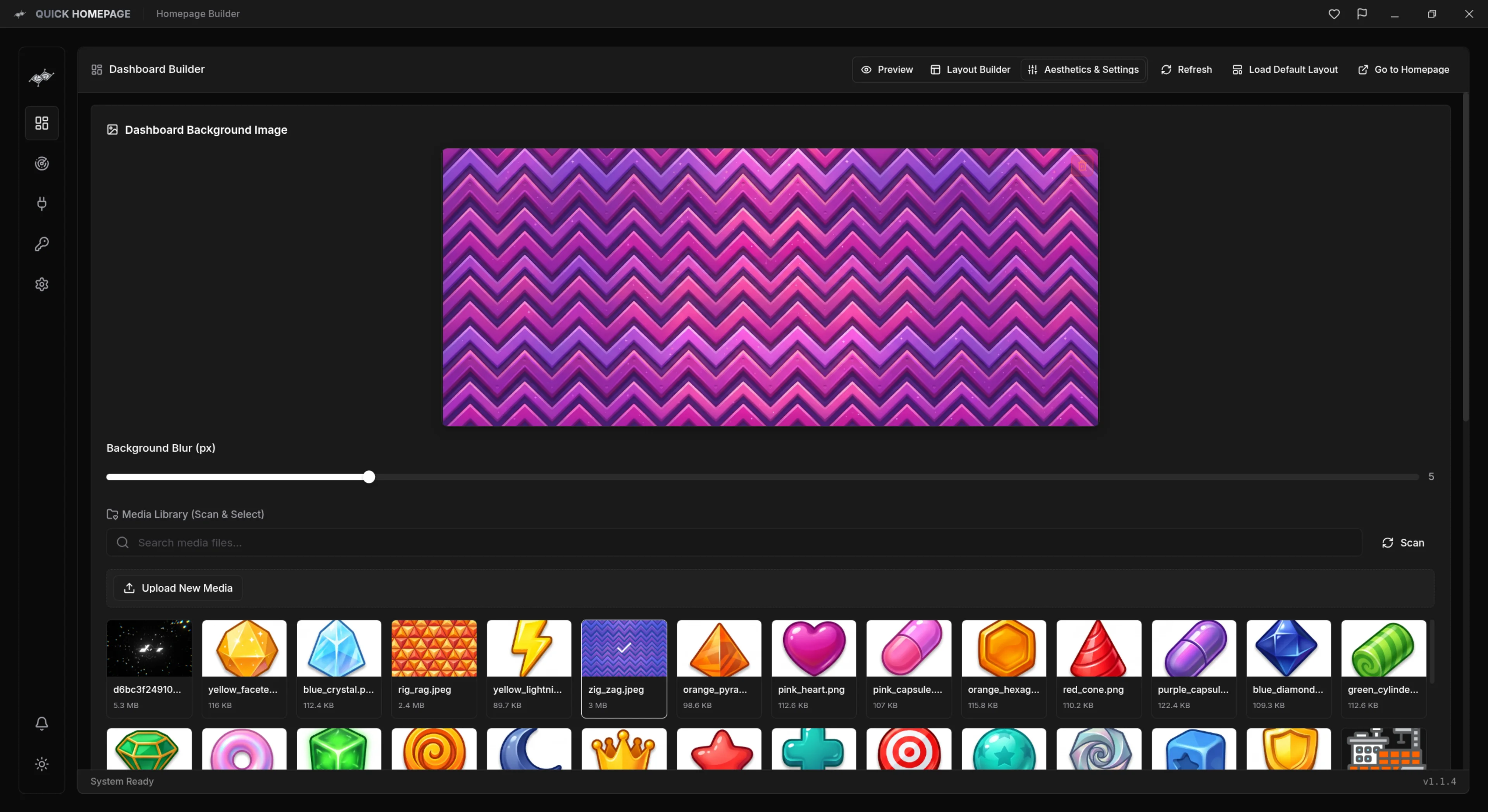
Once your devices are cleanly split across 2.4 GHz and 5 GHz, Quick Homepage keeps everything effortless to reach:
1. Keep Smart Gear and Work Servers Together in One View
Even with cameras and printers on 2.4 GHz and your PC on 5 GHz, Quick Homepage auto-discovers their local panels and displays them with plain labels.
2. Glance at Device Status With Lightweight Add-ons
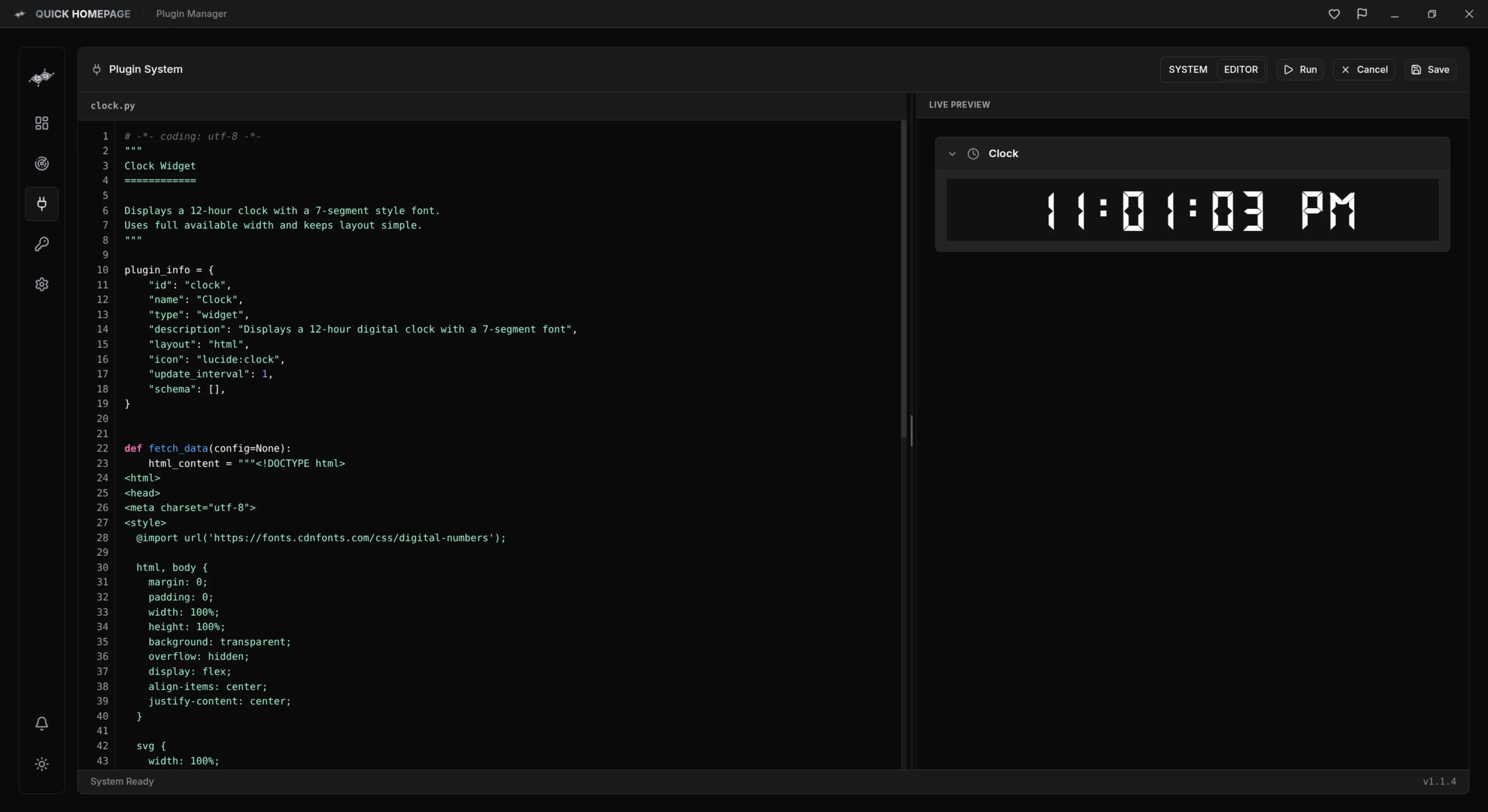
Use Quick Homepage's custom widgets and add-ons to monitor critical hosts at a glance instead of juggling a dozen browser tabs.

Quick Homepage
Access Every 2.4 GHz and 5 GHz Local Device From One Screen in Quick Homepage
Even when printers and smart cameras sit on 2.4 GHz while your workstation flies on 5 GHz, Quick Homepage auto-discovers and organizes every local panel in one fast hub.
- Auto-discovers local services seamlessly across both Wi-Fi bands
- Custom Python widgets and add-ons track key device status
- Separate collections keep smart gear and work servers tidy
- Fast, 100% local desktop interface with zero cloud overhead