IP Address Conflict Detected: Why Two Devices Fight Over One IP (and How to Fix It in 2 Minutes)
Random Wi-Fi drops and an 'IP Address Conflict' alert on your PC or printer? Learn why local devices collide on the same IP and how to stop it permanently.
How Do Two Devices End Up With the Exact Same IP on Your Home Network?
Nine times out of ten, a manually set static IP collided with your router's automatic DHCP pool.
An IP address works like an apartment number: give two doors the same number and deliveries fail. An IP address conflict usually happens when a printer, camera, or server is manually hardcoded to an address like 192.168.1.20 while your router—unaware of that manual setting—hands the exact same IP to a guest phone via DHCP.
The 2-Step Fix That Resolves IP Conflicts for Good
1. Release and Renew Your IP Immediately
Toggle Wi-Fi off and on, or run the quick release/renew command below so your PC grabs a fresh, unused IP address from the router right away.
2. Separate Static Ranges or Use Router DHCP Reservations
Instead of hardcoding IPs inside devices, assign permanent addresses inside your router's DHCP Reservation list—or start the router's automatic pool at .100 so lower numbers stay strictly reserved for fixed gear.
# Release and renew your IP address on Windows:
ipconfig /release
ipconfig /renew

# Check ARP table to spot duplicate devices on your LAN:
arp -a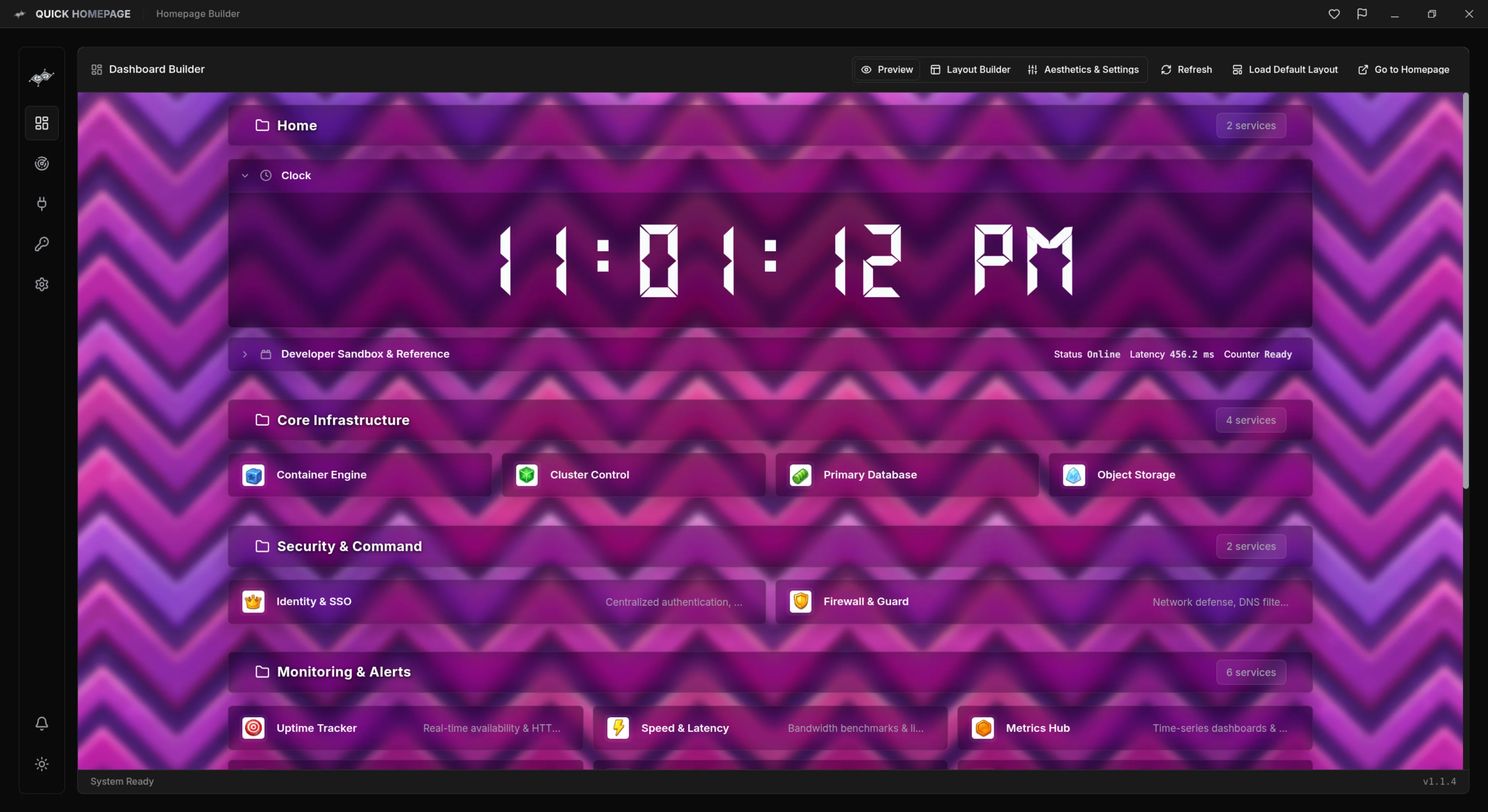
3 Rules to Keep Your Home Network Conflict-Free
- Ensure only one router on your home network is running a DHCP server.
- Prefer router DHCP reservations over manual static IPs inside individual devices.
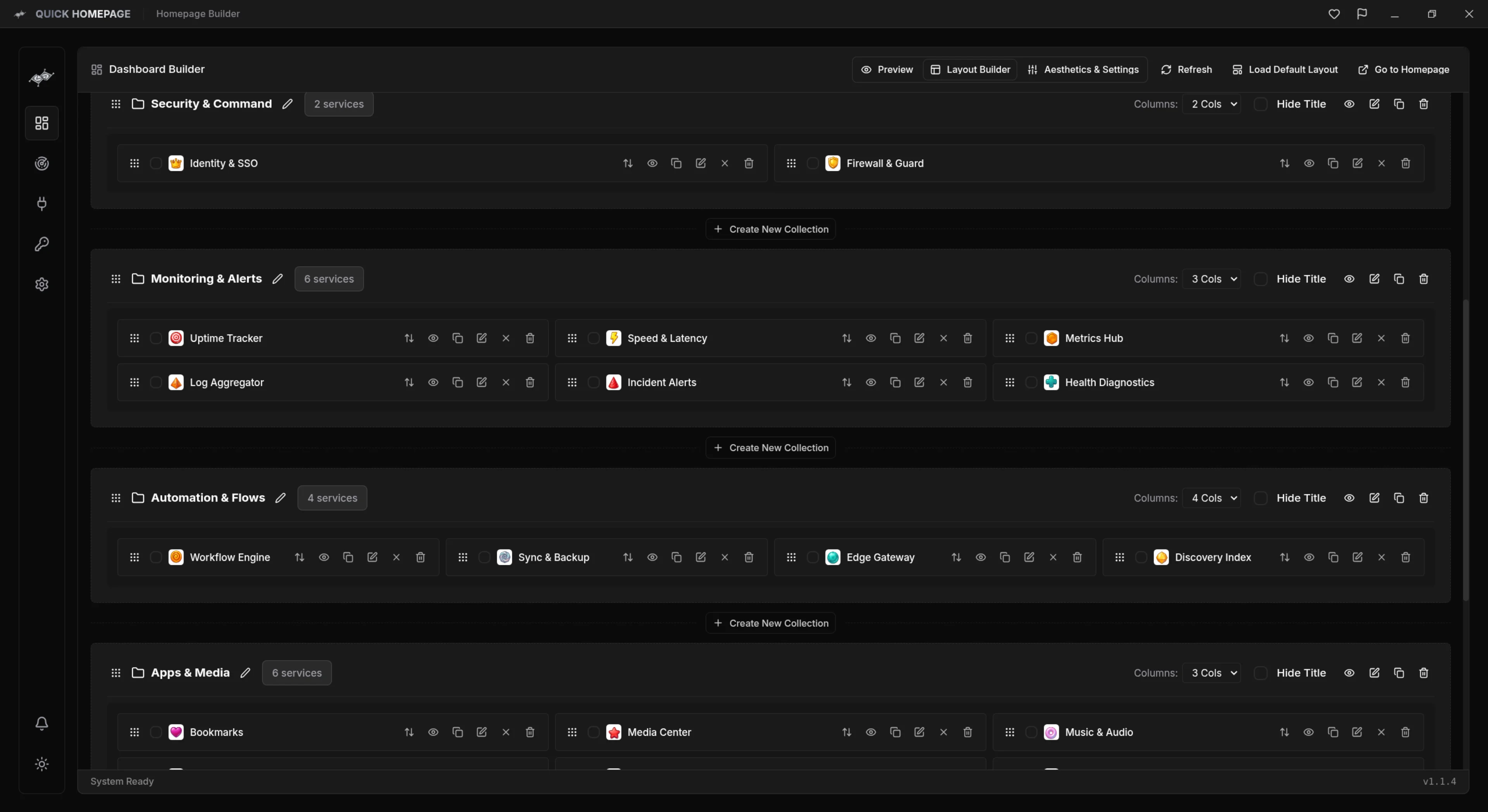
- Keep a single visual hub listing all fixed services so nothing gets forgotten.
Turn Your Clean Address Map Into a One-Click Hub With Quick Homepage
Once every device has its own stable lane, launching local services feels effortless.
With conflicts eliminated and core devices cleanly reserved on your router, your printers and servers stay reachable every day.
A tidy IP addressing plan prevents 90% of mysterious home network hiccups before they start.
Use Quick Homepage to auto-discover those active services and edit any link in seconds through its clean GUI editor.

Quick Homepage
Keep Your Conflict-Free Local Services Organized in Quick Homepage
Quick Homepage auto-discovers active services across your LAN and lets you update any local address or port in seconds through a clean visual editor.
- Instant auto-discovery of running services on your LAN
- Visual GUI editor updates any IP or port link in seconds
- Group printers, routers, and servers into tidy collections
- 100% local desktop app with lightweight performance