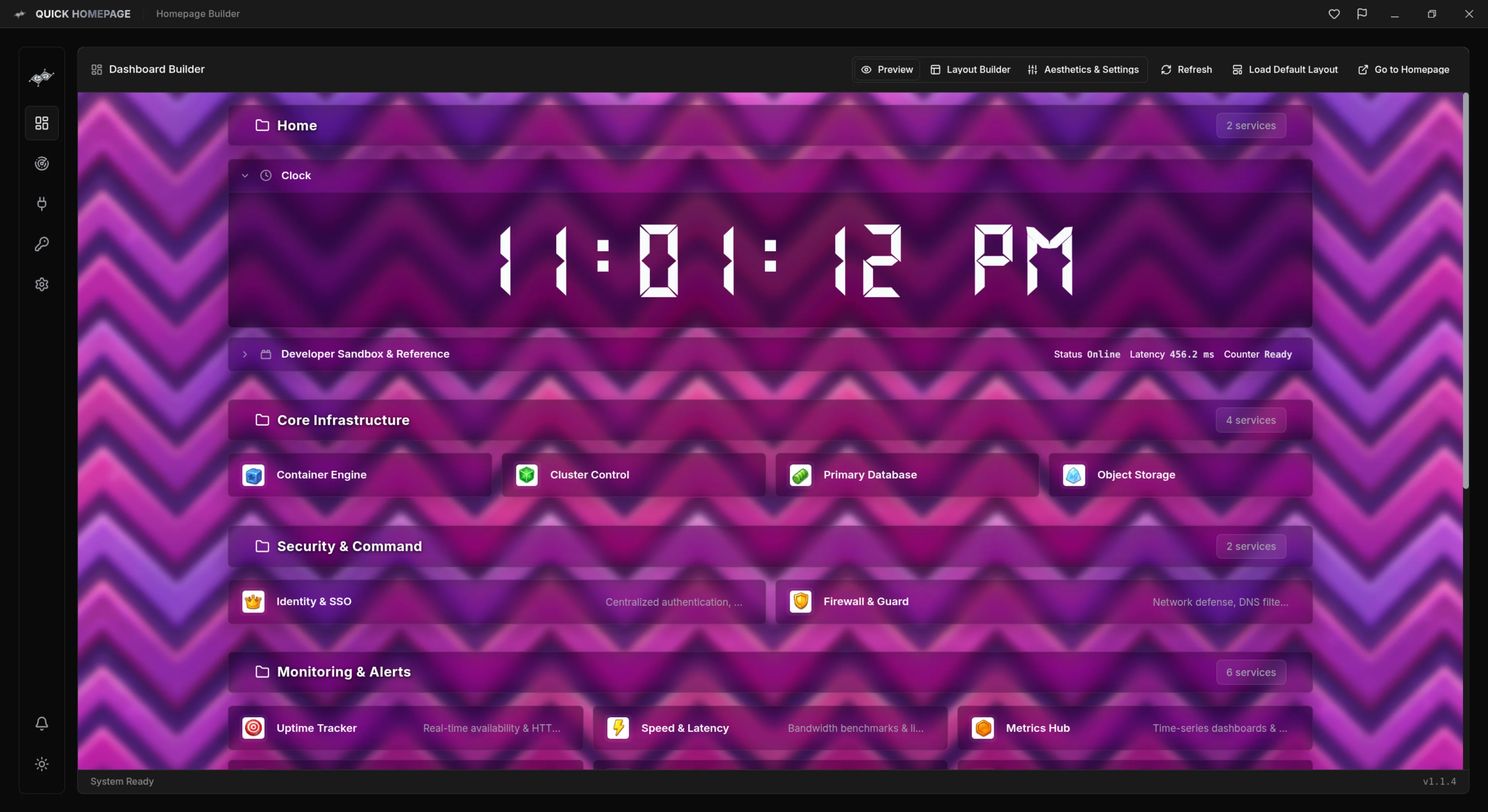
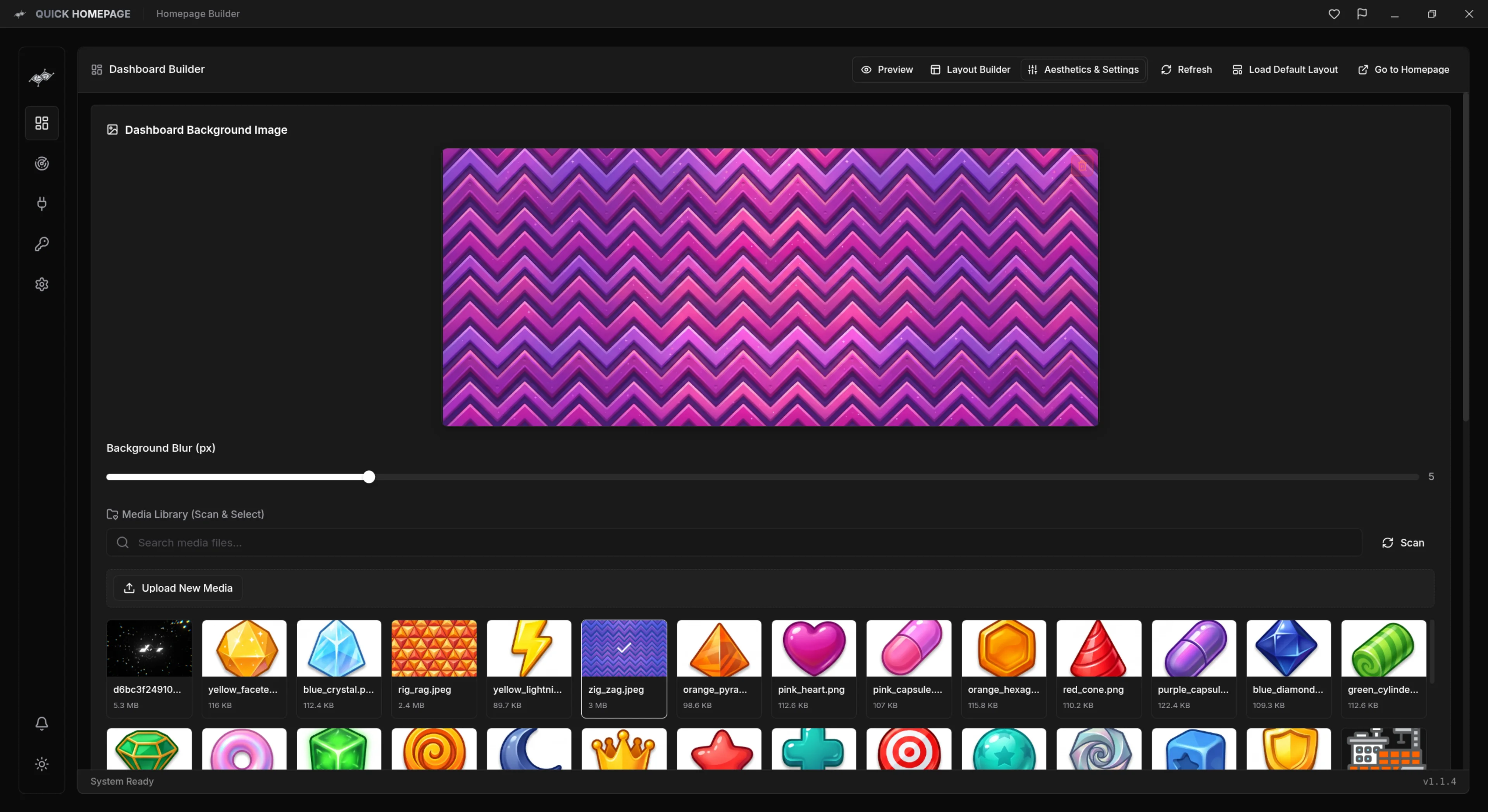
Best Password-Protected Local Dashboard Apps for Shared Home and Office Networks
Leaving edit buttons exposed on a shared computer invites accidental deletions and broken layouts. Discover what to look for in password-protected dashboards and how Quick Homepage handles it.
Why Wide-Open Dashboards Break Down on Shared Computers
One stray click from another user can wipe out carefully organized links and settings.
Most local dashboards assume only one person ever touches the keyboard, leaving edit and delete controls wide open all day. On a family desktop or shared office workstation, that design invites accidental changes that break daily access.
Two Protection Layers Every Shared Dashboard Needs
1. Built-In Dashboard Password Protection
Locking access with a password keeps sensitive server links and admin controls restricted to authorized users—without forcing you to deploy a heavy external authentication server.
2. Config Lock Against Accidental Edits
Even when others use the launcher daily, Config Lock freezes the layout so nobody can delete a card or scramble your collections by mistake.
4 Scenarios Where Password Lock Pays Off Immediately
- Running a shared start page on a family desktop or living-room PC.
- Sharing local tools across a small office or studio team.
- Protecting storage, router, and camera links on a common workstation.
- Freezing a finished layout so even your own misclicks cannot break it.
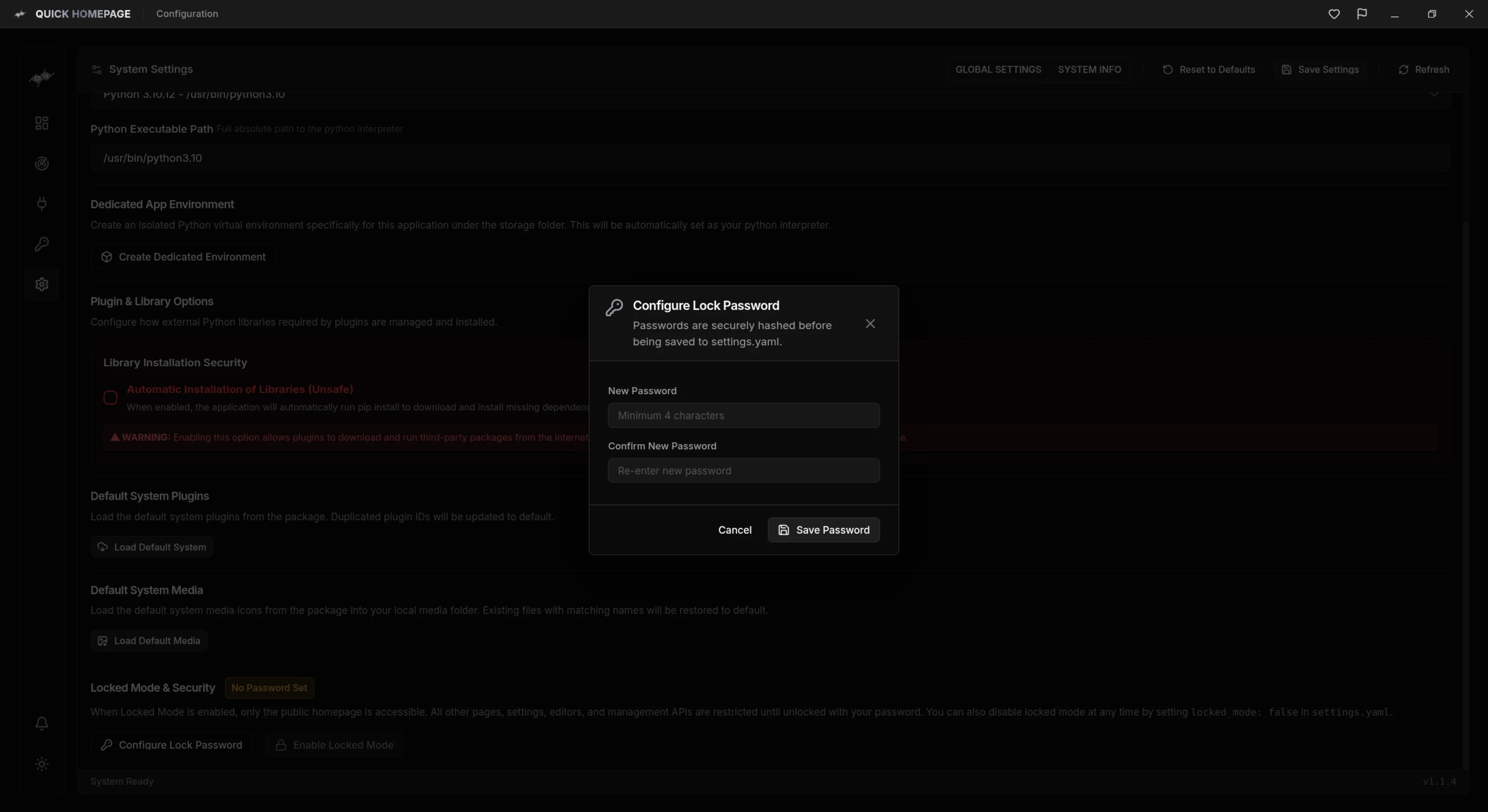
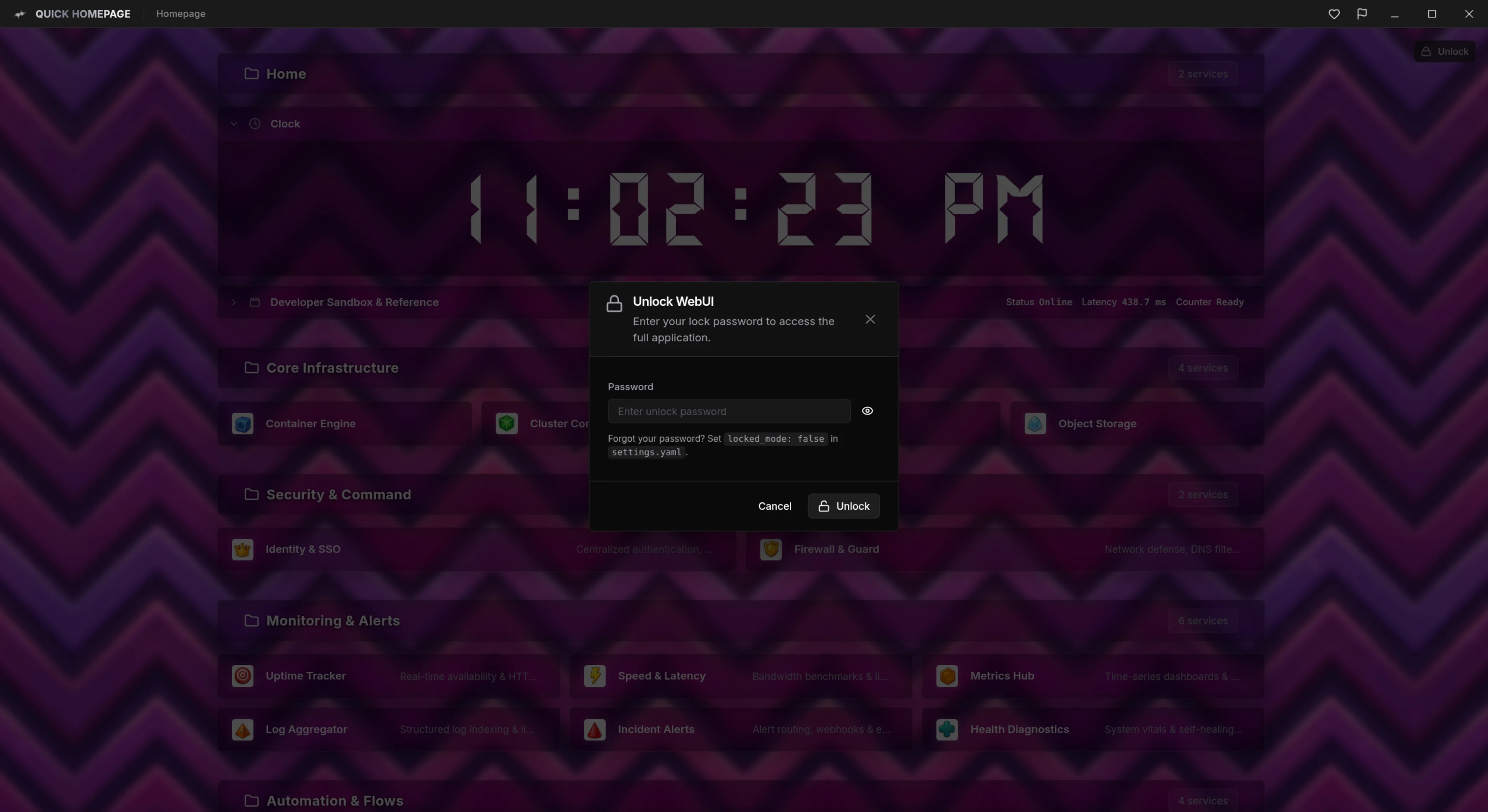
Practical Protection Built Right Into Quick Homepage
Securing your local dashboard should take seconds, not an afternoon of proxy rules.
The smartest security protects your setup from everyday human mistakes first.
Quick Homepage builds password protection and Config Lock directly into the app—keeping your dashboard clean and safe for everyone, while letting you unlock and edit in a single second.

Quick Homepage
Lock Dashboard Access and Prevent Accidental Edits in Quick Homepage
Quick Homepage includes built-in password protection and Config Lock so you can lock and unlock your dashboard securely on shared home or office computers.
- Built-in dashboard password protection to lock and unlock access securely
- Config Lock prevents accidental edits or deleted service cards
- Ideal for shared family PCs, small offices, and study labs
- Unlock in one second whenever you need to update your layout