Best Open-Source VM Server: Why Proxmox VE Leads the Pack
Want to run multiple isolated operating systems and services on one machine without pricey licenses? Discover why Proxmox VE is the top open-source virtualization platform.
Why Switch to an Open-Source Virtualization Server?
Run multiple isolated systems on one machine without licensing lock-in.
Instead of dedicating separate hardware to every experiment or service, virtualization lets you split a single desktop or server into cleanly isolated machines. You can run a study lab, a database host, and a networking sandbox side by side without conflicts.
As commercial hypervisors grow more expensive and restrictive, Proxmox VE has become the go-to open-source VM server—delivering enterprise features through a clean web interface at zero licensing cost.
Three Reasons Proxmox VE Stands Above the Rest
1. Full Virtual Machines (KVM) and Lightweight Containers (LXC) Together
Proxmox never forces a single approach. Spin up full KVM virtual machines whenever you need complete OS isolation, or launch lightweight LXC containers that boot in seconds and sip RAM for everyday Linux services.
2. Clean Web Management, Snapshots, and Built-In Backups
Managing CPUs, memory, virtual bridges, and disks happens right in your browser. Better yet, instant snapshots let you test risky upgrades safely—if anything breaks, roll back to a clean state in seconds.
3. Native ZFS Support and Room to Scale
Proxmox integrates ZFS out of the box for reliable storage and lets you link multiple nodes into a single cluster when you outgrow one machine—scaling smoothly from a student homelab to production workloads.
Five Tips Before Installing Proxmox for the First Time
A clean initial setup saves you from rebuilding later.
- Enable CPU virtualization in your motherboard BIOS/UEFI before installing.
- Assign a static IP address so the web panel is always at the same address.
- Use LXC containers for lightweight Linux services and KVM for full OS isolation.
- Always take a snapshot before changing network configs or running major upgrades.
- Keep your VM IDs and recovery notes on your personal laptop—never only on the server itself.
The real power of virtualization is not just running more systems—it is rolling back a bad change in seconds.
Quick CLI Check for VMs and Containers
Knowing a couple of shell commands pays off when troubleshooting over SSH. Save your essential commands and IP maps in an offline desktop notebook like Quick Homepage on your main workstation so they remain available even if the hypervisor goes offline:
qm list && pct list
Quick Homepage
Every Service on Your Network, One Click Away
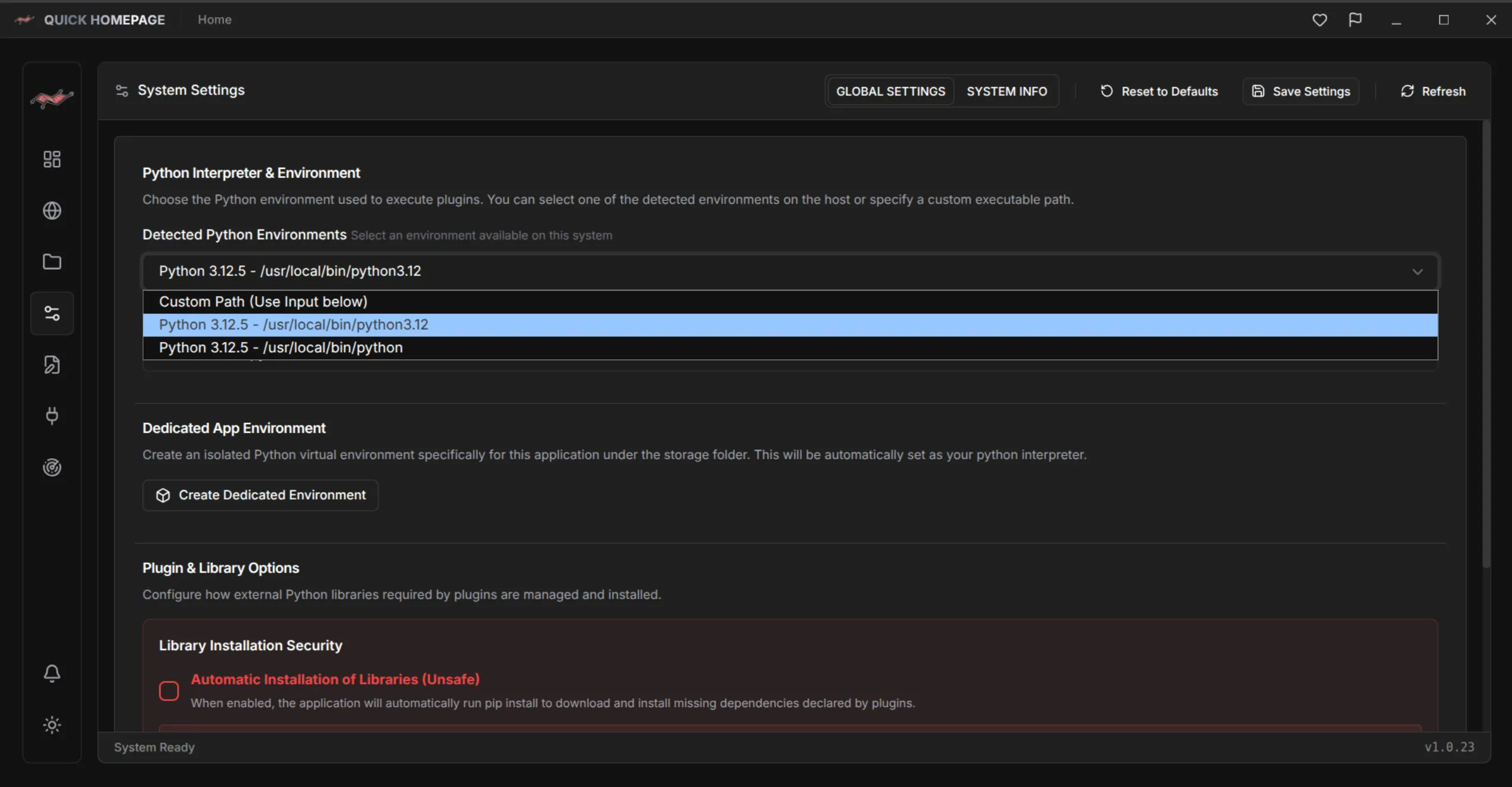
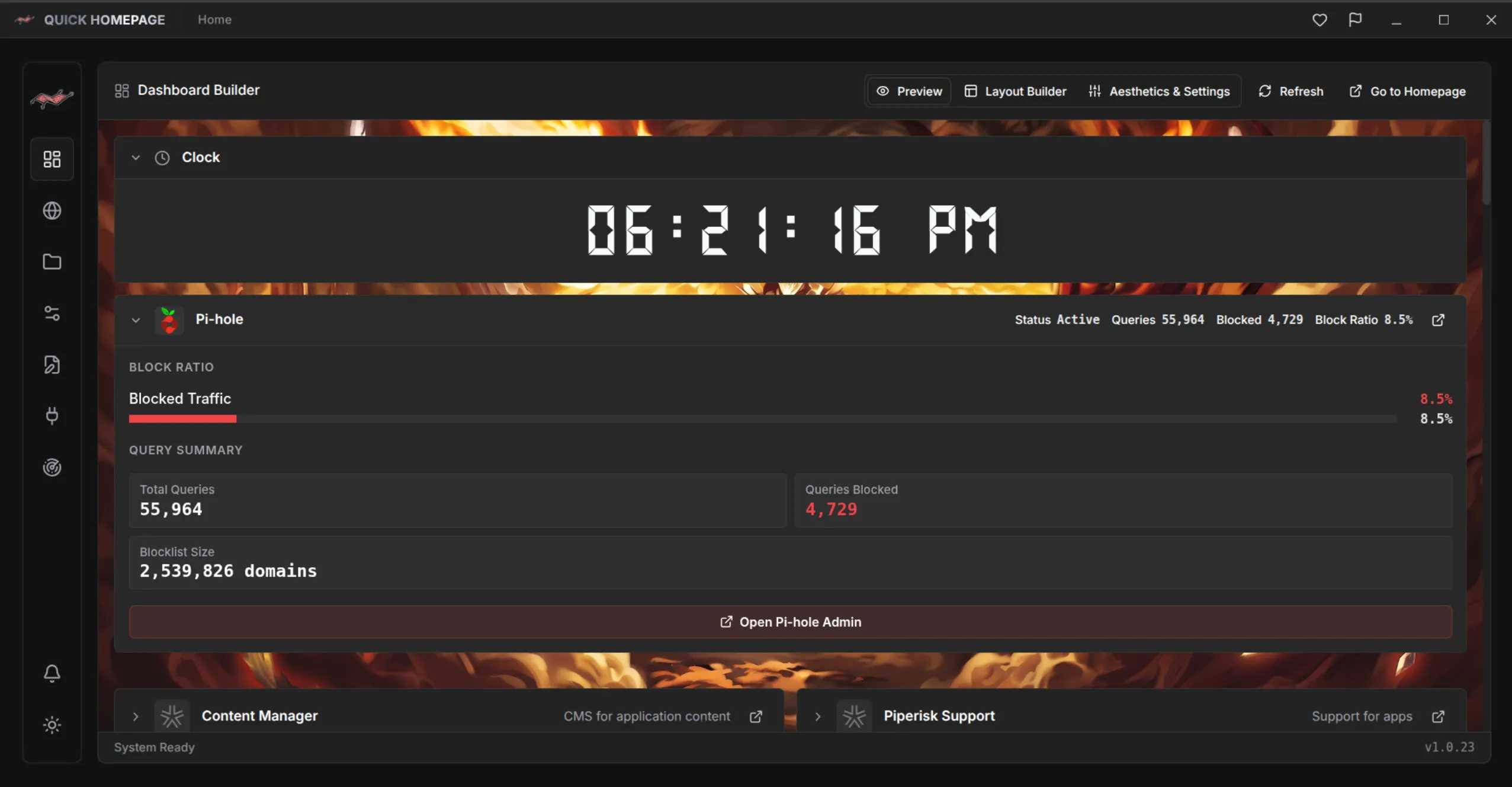
Quick Homepage is a desktop and self-hosted homelab dashboard that discovers running services with built-in Nmap scanning and organizes them into collections. Linux is supported today, with Windows planned.
- Built-in Nmap network and port scanner finds hosts, ports, and services
- Custom names, URLs, descriptions, and icons with a built-in icon and media library
- Collections, layouts, plugins, and live widgets for your homelab
- Configure through the GUI or edit YAML files directly