How to Back Up TrueNAS to Google Drive Using rclone Safely
A TrueNAS server alone is not a complete backup strategy. Learn how to automate encrypted off-site backups from TrueNAS to Google Drive using rclone.
Why You Still Need an Off-Site Backup With TrueNAS
Completing the 3-2-1 rule cleanly using rclone and Google Drive.
Redundant disks and ZFS snapshots protect you from a dying hard drive or an accidental deletion, but they cannot save your data if the entire machine is lost to a power surge, theft, or fire. An off-site copy of your most important folders closes that gap.
Because TrueNAS integrates directly with rclone under the hood, you can schedule encrypted, automated uploads of your critical datasets to Google Drive without exposing raw personal files.
Three Steps to Encrypted TrueNAS Backups With rclone
1. Connect Google Drive via Cloud Credentials
In the TrueNAS web interface, add a new Cloud Credential for Google Drive using standard OAuth sign-in. Point your backup task to a dedicated folder inside Drive so server archives stay cleanly separated from everyday files.
2. Turn On Client-Side Encryption Before Uploading
Always enable filename and content encryption in your TrueNAS Cloud Sync task—or wrap your remote in an rclone crypt layer. Your data is encrypted locally before leaving your network, meaning Google Drive only stores unreadable ciphertext.
3. Prefer Copy Over Blind Sync and Set a Bandwidth Cap
Using Copy mode prevents an accidental local deletion from immediately wiping your off-site archive. Schedule runs overnight and apply a bandwidth limit so uploads never choke your home internet connection.
Five Golden Rules for Reliable Off-Site Backups
Make sure your archive actually restores before disaster strikes.
- Always test new commands with --dry-run before moving or overwriting real files.
- Encrypt sensitive datasets locally and store your encryption passphrase in a separate safe place.
- Skip easily re-downloadable media; prioritize irreplaceable documents, photos, and configs.
- Test restoring a random file every few months to verify the backup is intact.
- Keep your remote names, paths, and restore steps documented offline on your personal workstation.
An untested backup is not a backup—it is just a hope.
Testing Your rclone Command Safely First
Whether you configure tasks through the TrueNAS UI or run custom rclone scripts from the shell, always run a dry test first to verify paths and bandwidth limits. Saving your tested copy and restore commands inside Quick Homepage keeps them ready whenever you need them:
rclone copy /mnt/pool/important gdrive-crypt:truenas-backup --dry-run --bwlimit 5M
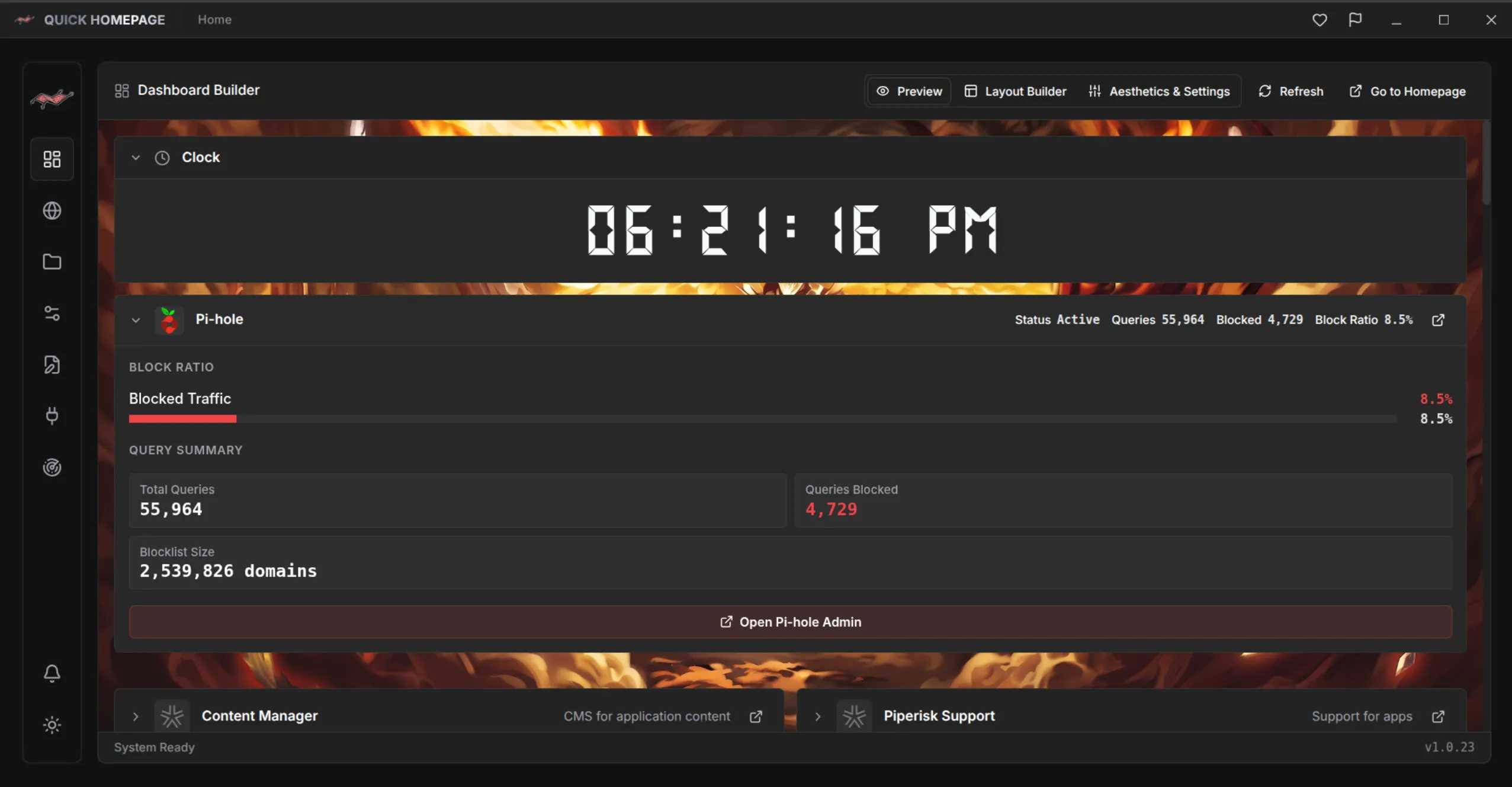
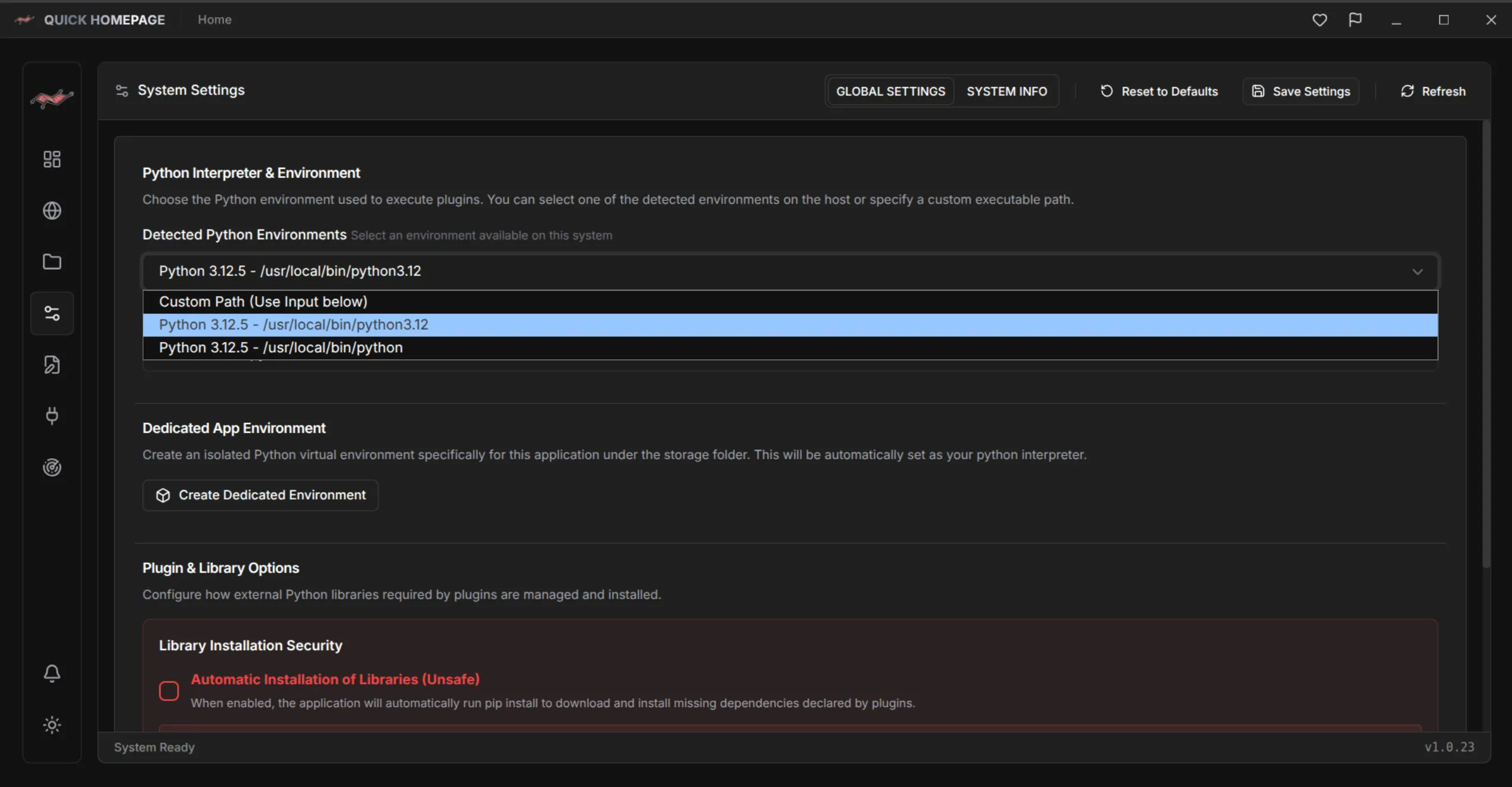
Quick Homepage
Every Service on Your Network, One Click Away
Quick Homepage is a desktop and self-hosted homelab dashboard that discovers running services with built-in Nmap scanning and organizes them into collections. Linux is supported today, with Windows planned.
- Built-in Nmap network and port scanner finds hosts, ports, and services
- Custom names, URLs, descriptions, and icons with a built-in icon and media library
- Collections, layouts, plugins, and live widgets for your homelab
- Configure through the GUI or edit YAML files directly